The Canva AI video generator is an advanced creative tool powered by Google’s Veo-3 model that transforms text prompts into cinematic 8-second video clips with automatically synchronized audio.
By integrating DeepMind’s latest video-generation technology, Canva allows users to produce high-fidelity content that includes environmental sounds and dialogue without needing external editing software.
Table of Contents
Key Takeaways
- Core Technology: Powered by Google Veo-3, producing 8-second clips with synced audio.
- Access Points: Available via the Canva Home Page (chat-style) or the “Elements” tab in the editor.
- Top Features: Includes Magic Video, Auto Captions, AI Voiceover, and Highlights.
- Major Limitation: Paid plans are restricted to 5 video generations per month as of late 2025/2026.
- Best Free Alternative: Gaga AI provides free credits, bypassing Canva’s strict limits.
What is the Canva AI Video Generator?
The Canva AI video generator is a generative AI feature within the Magic Studio suite that synthesizes video and audio from natural language descriptions. Unlike older models, the current iteration uses the Veo-3 engine to ensure that the visual motion and the generated sound effects are perfectly aligned.
Key Capabilities:
- Text to Video: Converts English text prompts into 8-second cinematic clips.
- Image to Video: Animates static images generated by the Canva AI art generator or uploaded photos.
- Synchronized Audio: Automatically generates background tracks, SFX, or dialogue that matches the visual context.
- Integrated Workflow: Generated clips can be immediately edited using Canva’s background remover, filters, and brand kits.
How to Make AI-Generated Videos in Canva
To generate an AI video in Canva, you must use either the Home Page’s “Magic Media” chat interface or the “Elements” sidebar within a design project. The method you choose depends on whether you are creating a primary clip or supporting B-roll.
Method 1: The Home Page (Main Content)
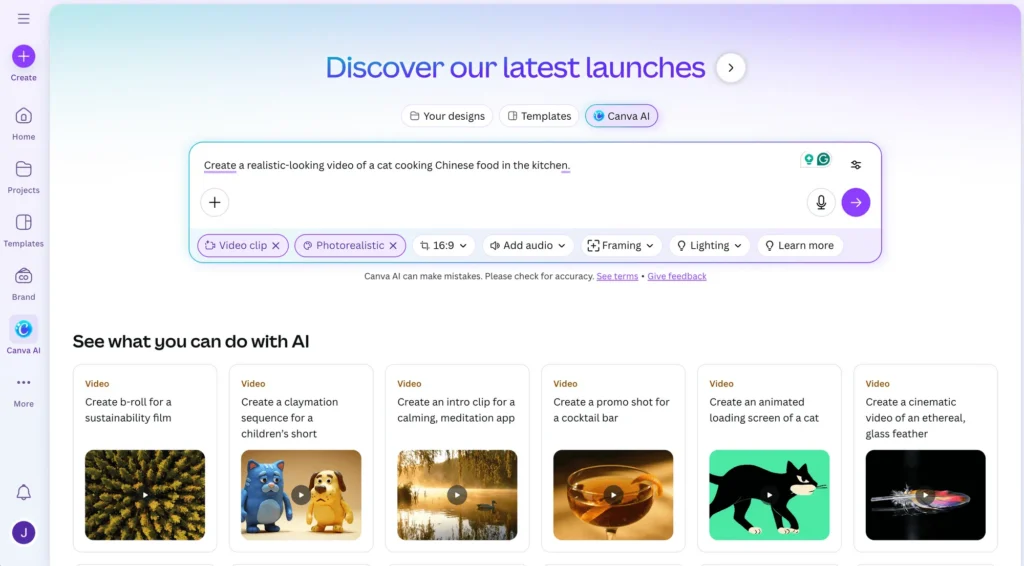
1. Launch Canva: Click the “Video” icon on the home page.
2. Input Prompt: Use the chat-style interface to describe your scene (e.g., “A futuristic drone delivering a package in a rainy cyberpunk city, cinematic lighting, 4k”).
3. Refine: Use follow-up instructions to modify colors, lighting, or camera angles.
4. Edit: Click “Use Canva Editor” to add text overlays or transitions.
Method 2: The Elements Tab (B-Roll)
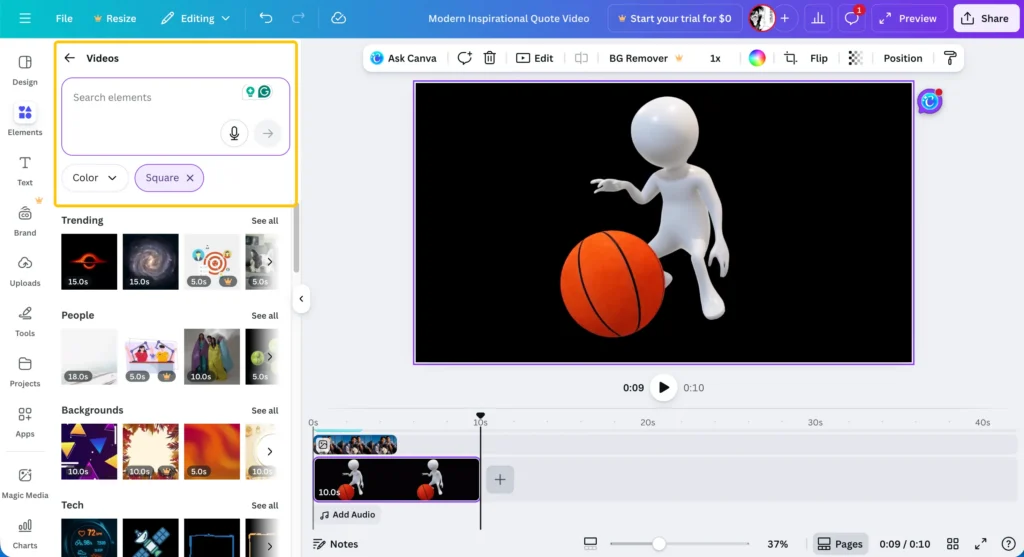
1. Open Editor: Within your project, go to the Elements tab.
2. Generate: Search for a video and select the “Generate AI Video” option.
3. Insert: This method produces shorter clips ideal for replacing existing segments or adding B-roll to a larger timeline.
Powerful Features of the Magic Studio
Canva’s video ecosystem uses “Magic Studio” tools to automate the technical aspects of video production, from captioning to moment selection.
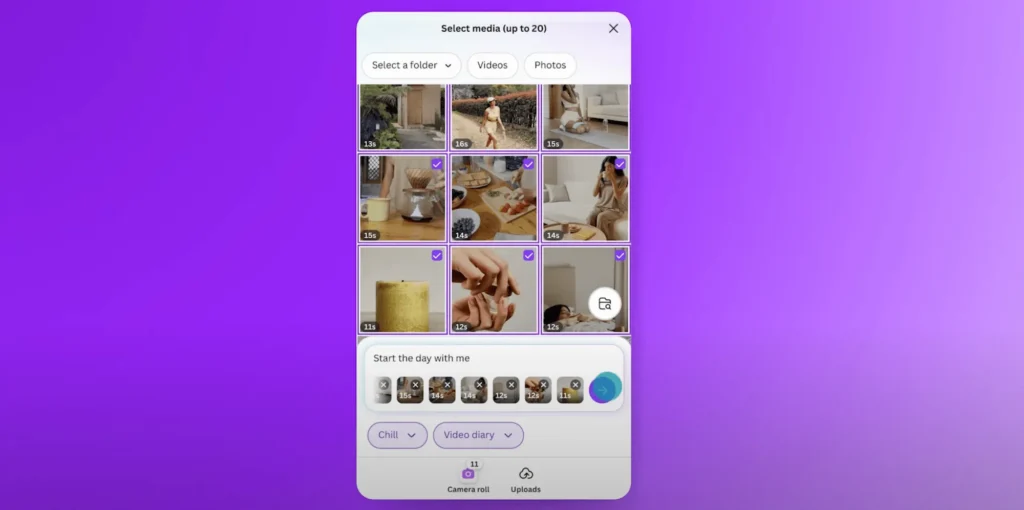
1. Magic Video (Mobile-First)
Magic Video is an AI tool that automatically assembles 60-second videos from your uploaded photos and clips. It selects transitions, applies a consistent style, and syncs the edit to a music track. Note: As of 2026, this feature remains a mobile-exclusive functionality.
2. Auto Captions & AI Voiceover
- Auto Captions: Found in the Text tab, this tool transcribes speech into animated on-screen text in multiple languages (English, Arabic, French, etc.).
- AI Voiceover: Located in the Apps marketplace, it converts text into human-like speech with various accents, perfect for product demos or narration.
3. Highlights
The Highlights feature uses AI to analyze long-form footage and automatically extract the most engaging moments. It crops these into short, “snackable” clips that are ready for social media platforms like TikTok or Instagram Reels.
Creating the “Generative Loop”: Logo and Art Integration
Successful video content requires consistent branding, which is achieved by layering assets from the canva ai logo generator and art tools over your video.
- Canva AI Art Generator: Use this to create high-resolution “base frames.” For example, generate a custom landscape, then use image to video to animate the clouds or water.
- Canva AI Logo Generator: Generate a unique brand mark and use Magic Animate to create a professional intro or watermark for your AI-generated footage.
Review: Is Canva AI Video Worth It?
Canva AI is the most user-friendly video tool on the market, but its strict usage limits make it difficult for high-volume creators.
| Feature | Pros | Cons |
| User Experience | Intuitive, drag-and-drop, no learning curve. | English-only prompts for video. |
| Output Quality | Powered by Veo-3; cinematic and high-fidelity. | Maximum length is only 8 seconds. |
| Integration | Seamless connection with AI voice and captions. | Limited to 5 generations per month on Pro. |
Best Free Alternative: Gaga AI
Gaga AI is the top-rated free alternative for users who find Canva’s 5-clip monthly limit too restrictive. While Canva is a better “all-in-one” editor, Gaga AI is a superior “generation engine” for those needing frequent content.
- Higher Volume: Gaga AI offers free credits that refill every 12 hours, whereas Canva Pro offers only 5 per month.
- Creative Freedom: Gaga AI allows for more experimental prompts and longer character-driven sequences.
- Cost-Effective: It is the best solution for creators who need high-volume text to video and image to video outputs without a premium subscription.
FAQ: People Also Ask
Q: Why can I only generate 5 videos a month on Canva?
A: Due to the high computational cost of the Google Veo-3 model, Canva currently limits generations to 5 per month even for Pro users to maintain system stability.
Q: Does Canva AI video support multiple languages?
A: You can only prompt the video generator in English. However, once the video is created, you can use Auto Captions and Translate to add text in over 40 languages.
Q: Can I turn a photo into an AI video in Canva?
A: Yes. Upload your photo to the Magic Media app and select the image to video function to add motion to your static assets.
Q: How do I add a talking presenter to my video?
A: Use the AI Avatars app by D-ID within the Canva marketplace. This allows you to upload a photo and a script to create a “talking head” video.