Key Takeaways
- Luma Dream Machine is a browser-based AI video and image generator by Luma AI, powered by the Ray 3 video model.
- It supports text-to-video, image-to-video, start/end frame control, video extension, and looping — all in one platform.
- A free plan is available with limited credits. Paid plans start at $30/month.
- The image-first workflow (generate an image → animate it) consistently produces better video output than text-to-video alone.
- Dream Machine’s Modify feature lets you edit existing videos and images with plain text descriptions — no timeline editor needed.
- Character Reference maintains a consistent character identity across multiple generations, solving one of AI video’s biggest pain points.
Table of Contents
What Is Luma Dream Machine?
Luma Dream Machine is an AI-powered video and image generation platform built by Luma AI. It lets users create cinematic video clips from text prompts or still images — entirely in a browser, with no software to install.
Unlike standalone text-to-video tools, Dream Machine is designed as a full creative workflow platform: from initial idea and image generation, through video creation, to modification and final output. The entire pipeline runs inside one interface.
It is powered by Luma’s Ray 3 video model (also called Ray 3.14), which sits alongside third-party models like Sora 2, Veo 3, Kling, and Seedance — all accessible from within the same dashboard on paid plans.
Dream Machine is used by filmmakers, advertisers, game designers, social media creators, and marketing teams who need high-quality video output without traditional production costs.
What Can Luma Dream Machine Do?
Dream Machine covers the full video creation pipeline. Here is what each feature actually does:
Text-to-Video
Type a prompt describing the scene, characters, setting, and action. Dream Machine generates a video clip from scratch. Best for quick ideation and testing concepts.
Image-to-Video
Upload any still image — a photo, an AI-generated image, a product shot, an illustration — and Dream Machine animates it into a video. This consistently produces higher-quality, more predictable output than text-to-video.
Start / End Frame Control
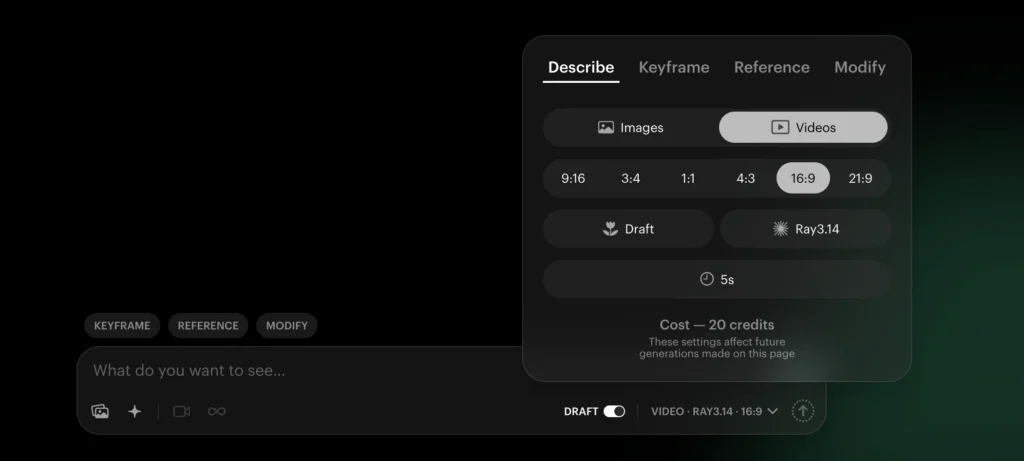
Provide both a starting image and an ending image. Dream Machine generates the video transition between them. This gives you precise control over the narrative arc of each shot.
Video Extension
Take any existing video clip and extend it forward — the AI continues the scene, maintaining visual consistency with the original footage.
Loop Generation
Type “loop” in your prompt or use the loop toggle, and Dream Machine generates a seamlessly looping video — ideal for background visuals, social content, or ambient clips.
Modify (Text-Based Editing)
Describe what you want to change in an existing image or video. The AI applies the change without regenerating the full clip. This is the feature behind the recent traffic surge.
Character Reference
Upload a reference image of a character, and Dream Machine maintains that character’s visual identity — face, outfit, style — across multiple generations and scenes.
Boards
A multi-purpose workspace that functions as an artboard (for image layout), storyboard (for shot planning), and moodboard (for visual direction). All generations can be organized and managed here.
Brainstorm Mode
Click brainstorm for AI-generated prompt suggestions when you’re stuck on concepts. Useful for starting projects from a blank slate.
How to Use Luma Dream Machine: Step-by-Step
Step 1: Create a Free Account
Go to dream-machine.lumalabs.ai and sign up. Free accounts receive trial credits — enough to test the core features without a credit card.
Step 2: Start With an Image (Recommended)
Rather than typing a text-to-video prompt directly, generate an image first:
- Click Create and select Image.
- Write a detailed scene description — include subject, environment, lighting, and mood.
- Choose your aspect ratio: 16:9 for YouTube/horizontal, 9:16 for TikTok/Reels, 1:1 for square posts.
- Generate and review the results. Pick the strongest image.
Step 3: Animate the Image to Video
- Click on your chosen image and select Make Video (or Animate).
- Write a motion prompt describing the movement you want — be specific: “slow camera dolly forward, hair moving in the wind, birds crossing the sky in the background”.
- Set the video duration (free plan: up to 5 seconds; paid plans support longer clips).
- Click Generate and wait — typically 20–60 seconds.
Step 4: Use Start / End Frames for Precision
For narrative control:
- Select Keyframes in the video creation panel.
- Upload or assign your start frame image.
- Upload or assign your end frame image.
- Add a motion prompt for what happens between the two frames.
- Generate.
Step 5: Modify If Needed
If the video is close but not perfect:
- Click Modify on the generated clip.
- Type your change in plain language: “make the background sunset more orange” or “slow down the camera movement”.
- Apply and preview.
Step 6: Extend or Loop the Video
- To continue a scene: click Extend and add a prompt for what happens next.
- To create a loop: use the Loop toggle before generating, or type “loop” in your prompt.
Step 7: Export
Download in MP4 format. For social media: 1080p is the standard export resolution. Pro and Ultra plans support higher resolution output.
Luma Dream Machine Pricing: What Do You Actually Get?
| Plan | Price | Key Features |
| Free | $0 | Trial credits, core features, watermarked output on some exports |
| Plus | $30/month | Full Ray 3 model access, third-party models (Sora 2, Veo 3, Kling), commercial use, guest collaboration |
| Pro | $90/month | 4x usage quota, all Plus features |
| Ultra | $300/month | 15x usage quota, all Pro features |
| Enterprise | Custom | Custom fine-tuning, SSO, dedicated training |
The free plan is functional for testing but limited in total generation credits. For content creators producing more than a few videos per week, the Plus plan at $30/month is the practical entry point.
What’s included in all paid plans:
- Access to Ray 3.14 and Ray 3.14 HDR video models
- Access to third-party models: Sora 2, Veo 3, Veo 3.1, Kling, Nano Banana, Seedance
- Commercial use rights
- Full Modify, Character Reference, Boards, and Brainstorm features
Luma Dream Machine vs. Competitors: How Does It Compare?
| Feature | Dream Machine | Sora 2 | Veo 3 | Kling 2.6 |
| Text-to-video | ✅ | ✅ | ✅ | ✅ |
| Image-to-video | ✅ | ✅ | ✅ | ✅ |
| Video modification | ✅ Ray3 Modify | ❌ | ❌ | ❌ |
| Character consistency | ✅ Character Ref | Limited | Limited | ✅ |
| Audio generation | ❌ | ❌ | ✅ (Veo 3) | Limited |
| Loop generation | ✅ | ❌ | ❌ | Limited |
| Start/end frames | ✅ | ✅ | ❌ | ✅ |
| All-in-one platform | ✅ | ❌ | ❌ | ❌ |
| Free tier | ✅ | Limited | Limited | ✅ |
| Paid entry price | $30/mo | Via ChatGPT+ | Via Google | $8/mo |
Dream Machine’s primary advantage is its unified workflow — you can ideate, generate images, create videos, modify, extend, and organize everything inside one platform. Other tools require jumping between separate services.
Dream Machine’s primary weakness is the absence of native audio generation. Veo 3 currently leads on synchronized audio output. If audio is a priority, pairing Dream Machine with a dedicated voice tool is necessary.
5 Tips for Getting Better Results in Dream Machine
1. Describe the Camera, Not Just the Subject
Weak prompt: “a woman walking in a park” Strong prompt: “a woman walking through a sun-dappled park, slow tracking shot from the left, shallow depth of field, golden hour lighting”
The camera behavior — movement, angle, depth of field — significantly impacts video quality.
2. Use the Image-First Workflow
Always generate an image before animating. A well-composed image gives the video model a concrete visual reference, which produces more consistent, higher-quality output than abstract text descriptions alone.
3. Keep Motion Prompts Specific and Focused
Describe one primary motion per clip. Conflicting motion descriptions (e.g., “camera zooms in while also panning right and the subject runs forward”) reduce coherence.
4. Use Character Reference for Multi-Scene Projects
If you’re creating more than one clip with the same character, upload a Character Reference image at the start. This prevents the character’s appearance from drifting between scenes.
5. Extend Instead of Regenerate
If a 5-second clip is good but ends too abruptly, use Extend rather than regenerating. This preserves everything that worked about the first clip and adds continuity.
Common Issues and How to Fix Them
The video looks blurry or low quality
Fix: Check your source image resolution — low-res inputs produce low-res video. Generate your source image at the highest quality setting before animating.
The character’s face looks different in each generation
Fix: Use the Character Reference feature. Upload a clear, well-lit frontal image of the character as the reference before generating subsequent clips.
The video ignores my motion prompt
Fix: Simplify the prompt. Remove conflicting instructions. Use camera terminology: “dolly,” “pan,” “zoom,” “tilt,” “tracking shot,” “handheld.”
The free credits ran out too quickly
Fix: Prioritize the image-first workflow — images cost fewer credits than video generations. Use Modify instead of full regeneration when making small changes.
I can’t access Sora 2 or Veo 3 inside Dream Machine
Fix: Third-party models (Sora 2, Veo 3, Kling, Seedance) require a Plus plan or higher. They are not available on the free tier.
Who Is Luma Dream Machine Best For?
Dream Machine is best suited for creators who need a complete, single-platform workflow rather than maximum raw output quality on any single dimension.
| Use Case | Fit |
| Social media creators (TikTok, Reels, YouTube) | ✅ Excellent |
| Advertising and marketing teams | ✅ Excellent |
| Film pre-visualization and storyboarding | ✅ Excellent |
| Independent filmmakers | ✅ Strong |
| Game designers (concept & cinematic) | ✅ Strong |
| Creators needing audio in video | ⚠️ Pair with audio tool |
| High-volume batch video production | ⚠️ Consider API access |
Bonus: Gaga AI — The All-in-One Free Alternative
If you need image-to-video, audio, AI avatars, and voice cloning in a single free platform, Gaga AI is the alternative worth knowing about.
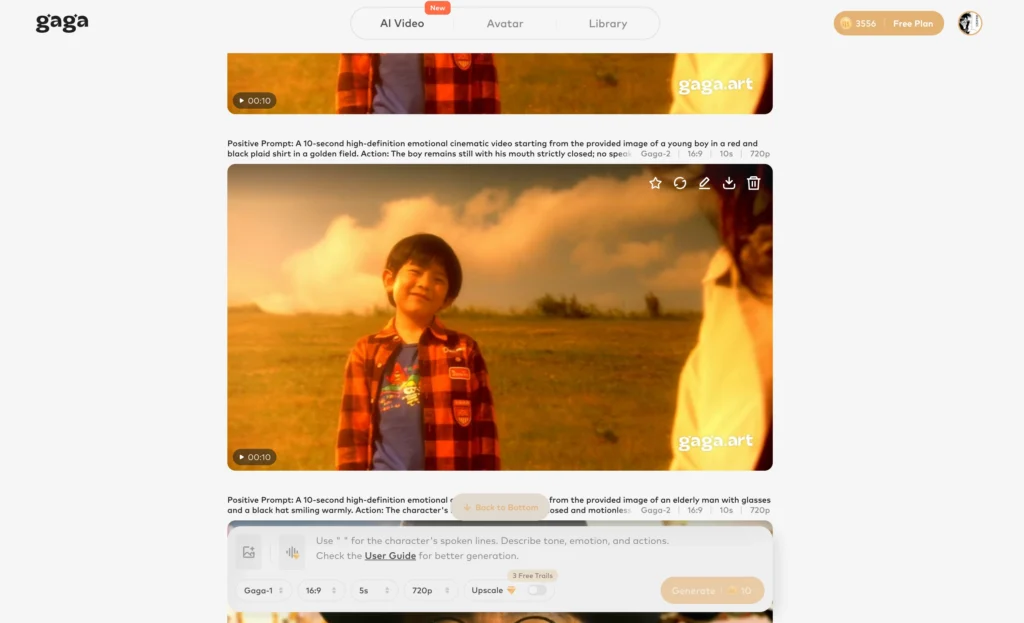
While Dream Machine excels as a professional video creation platform, Gaga AI takes a different approach — bundling multiple capabilities that would otherwise require four or five separate subscriptions.
What Gaga AI Offers
Image-to-Video Upload any image and animate it into a video clip with cinematic motion controls. The workflow mirrors Dream Machine’s image-first approach — generate an image, then animate — but with no credit cost barriers on the free tier.
Video + Audio Fusion Gaga AI generates video and matching audio simultaneously. Where Dream Machine produces silent video (requiring a separate audio tool), Gaga AI can create ambient sound, music, and atmospheric audio synced to the visual scene — in one generation step.
AI Avatar Generate a speaking AI avatar from a single photo. The avatar can deliver scripted text — useful for explainer videos, social content, product demonstrations, or personalized outreach — without hiring an on-camera presenter.
AI Voice Clone Upload a short audio sample of any voice, and Gaga AI replicates it. The cloned voice can then be used to narrate videos, power AI avatars, or generate audio content in that voice’s style — without the original speaker being present.
Text-to-Speech (TTS) Convert any written script into natural-sounding spoken audio across multiple voice styles and languages. Useful for adding voiceover to any video — including Dream Machine exports.
When to Use Gaga AI Instead of Dream Machine
| Need | Gaga AI | Dream Machine |
| Image-to-video (free, no watermark) | ✅ | ✅ (limited credits) |
| Audio synced to video | ✅ | ❌ |
| AI avatar with scripted speech | ✅ | ❌ |
| Voice cloning | ✅ | ❌ |
| Text-to-speech | ✅ | ❌ |
| Professional video editing workflow | Limited | ✅ |
| Third-party model access (Sora, Veo) | Limited | ✅ (paid) |
| Character consistency across scenes | Limited | ✅ |
The practical workflow many creators use: generate and refine video in Dream Machine, then add AI voice, audio, or avatar elements in Gaga AI — combining the strengths of both platforms.
Frequently Asked Questions
What is Luma Dream Machine?
Luma Dream Machine is an AI video and image generation platform built by Luma AI. It allows users to create cinematic video clips from text prompts or still images through a browser-based interface, with no software installation required.
Is Luma Dream Machine free?
Yes — Luma Dream Machine offers a free plan with trial credits. The free tier gives access to core features but limits the number of generations. Paid plans start at $30/month (Plus) and include access to third-party models like Sora 2 and Veo 3.
What model powers Luma Dream Machine?
Dream Machine is powered by Luma’s Ray 3 video model (specifically Ray 3.14 and Ray 3.14 HDR). Paid subscribers can also access third-party models including Sora 2, Veo 3, Veo 3.1, Kling, Nano Banana, and Seedance — all within the same platform.
How is Dream Machine different from other AI video tools?
Dream Machine’s key differentiator is its unified workflow. Most AI video tools are single-function generators. Dream Machine integrates image generation, video creation, video modification (Modify), video extension, character reference, looping, and storyboarding in one continuous platform — eliminating the need to switch between tools.
Can Dream Machine generate videos with sound?
No — Dream Machine does not currently generate audio natively. Video output is silent. For audio-enabled AI video, Veo 3 (via Google) currently leads the market. Alternatively, tools like Gaga AI provide video + audio fusion in a single generation.
What is the Ray 3 Modify feature?
Ray 3 Modify is Dream Machine’s text-based video and image editing tool. Instead of regenerating an entire clip to make a change, users describe the modification in plain text and the AI applies it surgically to the existing video or image. This feature was the primary driver behind the March 2026 search traffic spike.
How long can Dream Machine generate videos?
Free tier clips are typically up to 5 seconds per generation. Paid plans support longer durations, and the Extend feature allows you to chain multiple clips into longer sequences. The practical limit for a single contiguous generation is currently around 10–15 seconds on paid tiers.
What is the best way to use Dream Machine for social media?
The recommended workflow for social media content is: generate a high-quality image first (set to 9:16 for Reels/TikTok or 1:1 for feed), animate it with a focused motion prompt, and use the Extend or Loop feature to reach the desired clip length. Export in 1080p MP4 and upload directly to the platform.
Does Dream Machine support commercial use?
Yes — all paid Dream Machine plans include commercial use rights. The free tier may have restrictions depending on plan terms. Always review the current Terms of Service before publishing AI-generated content commercially.
What happened to Luma Dream Machine in March 2026?
In early March 2026, Luma AI released significant updates to Dream Machine including the Ray 3 Modify feature (text-based video editing), improved Character Reference controls, and an expanded Boards workspace. These updates triggered a +700% search spike in the US for the product during the week of March 3–10.