Key Takeaways
- LivePortrait is a free, open-source AI tool that animates static portrait photos using driving videos or real-time webcam input
- Developed by Kuaishou’s VGI team, achieving 12.8ms inference speed on RTX 4090—20-30x faster than diffusion-based methods
- Supports both human and animal portrait animation with precise expression retargeting
- Available on Hugging Face, ComfyUI, and as a standalone Python application
- No expensive hardware required—runs on RTX 4060 with 32GB RAM
Table of Contents
What Is LivePortrait?
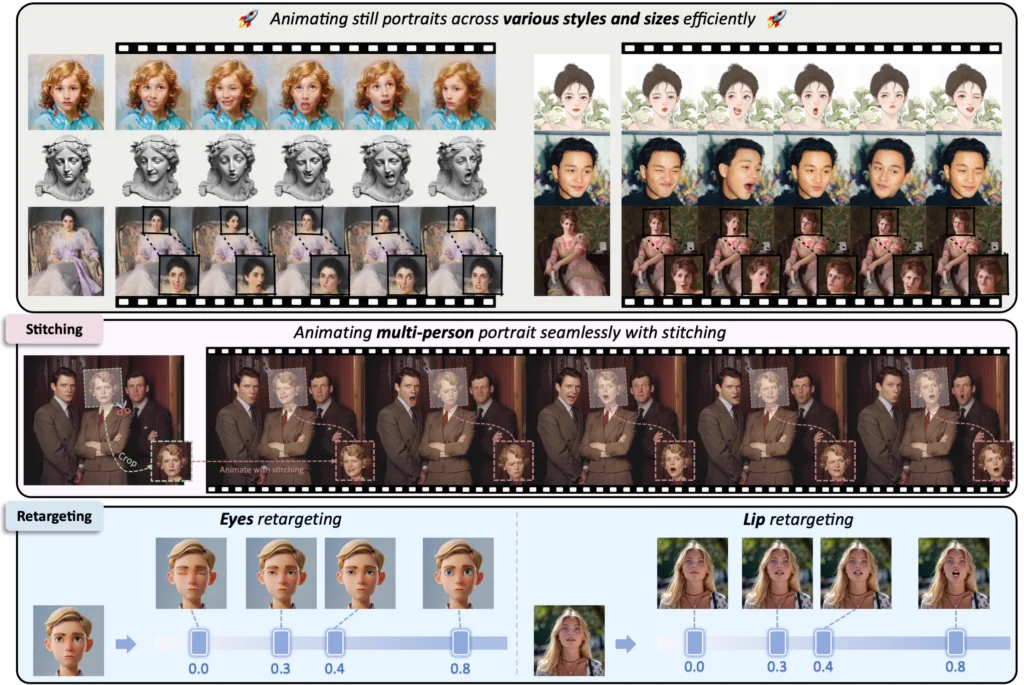
LivePortrait is an efficient, video-driven portrait animation framework that generates realistic animated videos from a single static image. Unlike traditional animation tools, it uses implicit keypoint technology to transfer facial expressions, head movements, and micro-expressions from a driving video to your source photo while preserving the original identity features.
The project has gained 17,000+ GitHub stars and is now integrated into major platforms including Kuaishou, Douyin (TikTok China), and WeChat Channels, proving its production-ready quality.
Core Capabilities at a Glance
LivePortrait delivers four primary functions:
1. Expression Transfer: Map facial expressions from any driving video to your static portrait
2. Real-time Animation: Use your webcam to control portrait expressions live (virtual avatar applications)
3. Stitching Control: Seamlessly blend animated faces back into original images, maintaining stable backgrounds and shoulders
4. Retargeting Precision: Independently adjust eye openness and lip movements with ratio controls
LivePortrait Hugging Face: Getting Started Without Installation
The fastest way to try LivePortrait AI is through the official Hugging Face Space:
Access here: https://huggingface.co/spaces/KlingTeam/LivePortrait
What You Can Do on Hugging Face
1. Upload a portrait photo (JPG/PNG, 1:1 aspect ratio recommended)
2. Choose a driving video or use preset expressions
3. Adjust retargeting controls:
- Eye Retargeting: Control eyelid openness (0.0 = closed, 1.0 = source image default)
- Lip Retargeting: Adjust mouth movement intensity
- Head Rotation: Fine-tune pitch, yaw, and roll angles
4. Generate and download your animated video
Pro tip: For best results, use driving videos where the subject faces forward in the first frame with a neutral expression. This establishes a stable reference baseline.
ComfyUI LivePortrait: Advanced Workflows for Creators
ComfyUI LivePortrait nodes enable visual programming workflows, giving technical users granular control over the animation pipeline.
Top ComfyUI LivePortrait Implementations
Three community projects dominate the ComfyUI ecosystem:
1. ComfyUI-AdvancedLivePortrait (by @PowerHouseMan)
- Real-time preview during generation
- Expression interpolation between keyframes
- Batch processing for multiple portraits
- Inspired many derivative projects
2. ComfyUI-LivePortraitKJ (by @kijai)
- MediaPipe integration as InsightFace alternative
- Lower VRAM requirements
- Better macOS compatibility
3. comfyui-liveportrait (by @shadowcz007)
- Multi-face detection and animation
- Expression blending controls
- Includes comprehensive video tutorial
Basic ComfyUI LivePortrait Workflow
[Load Image] → [LivePortrait Nodes] → [Expression Retargeting] → [Stitching Module] → [Output Video]
↓
[Load Driving Video]
Key parameters to adjust:
- Relative motion: Enable to preserve source image’s neutral expression baseline
- Stitching strength: Balance between animation fidelity and background stability
- Smooth strength: Reduce jitter in long video sequences (0.5 recommended)
Installing LivePortrait Locally: Step-by-Step Guide
System Requirements
Minimum specs:
- NVIDIA GPU with 8GB VRAM (RTX 3060 or better)
- 16GB system RAM (32GB recommended)
- 10GB free disk space
- Windows 11, Linux (Ubuntu 24), or macOS with Apple Silicon
Software dependencies:
- Python 3.10
- CUDA Toolkit 11.8 (Windows/Linux)
- Conda package manager
- Git
- FFmpeg
Installation Process
Step 1: Clone the Repository
git clone https://github.com/KwaiVGI/LivePortrait.git
cd LivePortrait
Step 2: Create Python Environment
conda create -n LivePortrait python=3.10
conda activate LivePortrait
Step 3: Install CUDA-Compatible PyTorch
Check your CUDA version:
nvcc -V
Install matching PyTorch (for CUDA 11.8):
pip install torch==2.3.0 torchvision==0.18.0 torchaudio==2.3.0 –index-url https://download.pytorch.org/whl/cu118
Step 4: Install Dependencies
pip install -r requirements.txt
conda install ffmpeg
Step 5: Download Pretrained Weights
huggingface-cli download KwaiVGI/LivePortrait –local-dir pretrained_weights –exclude “*.git*” “README.md” “docs”
Alternative: Download from Baidu Cloud if HuggingFace is inaccessible.
Step 6: Verify Installation
python inference.py
Successful execution produces animations/s6–d0_concat.mp4.
How to Use LivePortrait: Practical Applications
1. Animate a Static Photo with Custom Driving Video
python inference.py -s path/to/your_photo.jpg -d path/to/driving_video.mp4
Auto-crop driving videos to focus on faces:
python inference.py -s source.jpg -d driving.mp4 –flag_crop_driving_video
Adjust crop parameters if auto-detection fails:
- –scale_crop_driving_video: Controls zoom level
- –vy_ratio_crop_driving_video: Adjusts vertical offset
2. Create Reusable Expression Templates
Generate privacy-safe .pkl motion files:
python inference.py -s source.jpg -d driving.mp4
# Outputs both .mp4 and .pkl files
Reuse templates without exposing original driving video:
python inference.py -s new_photo.jpg -d expression_template.pkl
3. Real-Time Webcam Animation (Gradio Interface)
Launch interactive web UI:
python app.py
Access at http://localhost:7860 with controls for:
- Live webcam input as driving source
- Rotation sliders (Yaw: ±20°, Pitch: ±20°, Roll: ±20°)
- Expression intensity multipliers
- Stitching on/off toggle
4. Animate Animals (Cats & Dogs)
python app_animals.py
Requires additional X-Pose dependency (Linux/Windows only):
cd src/utils/dependencies/XPose/models/UniPose/ops
python setup.py build install
How LivePortrait AI Works: The Technology Behind the Animation
Implicit Keypoint Architecture
LivePortrait abandons computationally expensive diffusion models in favor of an end-to-end neural network consisting of:
- Appearance Feature Extractor: Captures identity-specific features (facial structure, hair, skin tone)
- Motion Extractor: Analyzes driving video to extract expression parameters
- Warping Module: Deforms source image based on motion keypoints
- SPADE Generator: Synthesizes final high-fidelity frames
This architecture enables deterministic control—you get consistent results without the randomness typical of generative AI.
Why It’s Faster Than Competitors
Traditional portrait animation relies on diffusion models that require hundreds of denoising steps. LivePortrait’s keypoint-based approach completes inference in 12.8 milliseconds per frame on an RTX 4090, making real-time applications feasible.
Performance comparison:
- LivePortrait: 12.8ms/frame (RTX 4090)
- Diffusion-based methods: 250-500ms/frame
- Speed advantage: 20-30x faster
LivePortrait vs. Competitors: What Makes It Stand Out
| Feature | LivePortrait | Diffusion Models | Traditional 3D Methods |
| Speed | 12.8ms/frame | 250-500ms/frame | 50-100ms/frame |
| Identity Preservation | Excellent | Variable | Excellent |
| Expression Fidelity | High | Very High | Moderate |
| Setup Complexity | Medium | High | Very High |
| GPU Requirements | RTX 3060+ | RTX 3090+ | Varies |
| Open Source | ✅ Yes | Some | Rare |
Key differentiator: LivePortrait achieves near-perfect balance between controllability (deterministic outputs) and naturalness (lifelike animations) without requiring expensive hardware or cloud processing.
Common LivePortrait Issues and Solutions
Issue 1: “CUDA out of memory” Error
Solution: Reduce batch size or process shorter video segments:
python inference.py -s source.jpg -d driving.mp4 –max_frame_batch 16
Issue 2: Poor Stitching Quality (Visible Face Boundaries)
Solution: Enable retargeting and adjust stitching strength:
python inference.py -s source.jpg -d driving.mp4 –flag_stitching –stitching_strength 0.8
Issue 3: Jittery Animation in Long Videos
Solution: Apply temporal smoothing:
python inference.py -s source.jpg -d driving.mp4 –smooth_strength 0.5
Issue 4: Driving Video Auto-Crop Misaligns Face
Solution: Manually adjust crop parameters:
python inference.py -s source.jpg -d driving.mp4 –flag_crop_driving_video –scale_crop_driving_video 2.5 –vy_ratio_crop_driving_video -0.1
Issue 5: macOS Performance Too Slow
Explanation: Apple Silicon runs 20x slower than NVIDIA GPUs due to MPS backend limitations. Consider using:
- Cloud GPU services (Google Colab, RunPod)
- Hugging Face Space for quick tests
- External GPU enclosures (eGPU) if on Intel Mac
Advanced Use Cases for LivePortrait AI
1. Virtual Live Streaming
Combine LivePortrait with OBS Studio:
1. Run python app.py with webcam input
2. Capture Gradio output using OBS virtual camera
3. Stream animated avatar to Twitch/YouTube
Latency: ~100-150ms total (acceptable for most streaming scenarios)
2. Video Dubbing and Lip Sync
Pair LivePortrait lip retargeting with audio-driven tools:
1. Generate speech with TTS (see Bonus section)
2. Create driving video from audio using tools like SadTalker
3. Apply LivePortrait with –lip_retargeting_ratio for precise sync
3. Digital Resurrection Projects
Animate historical photographs:
- Use high-resolution scans (600+ DPI)
- Apply conservative expression templates
- Enable stitching to preserve photo grain/texture
Bonus: Gaga AI Video Generator for Complete Avatar Creation
While LivePortrait excels at portrait animation, creating a fully functional AI avatar requires additional components. Gaga AI provides an integrated solution combining:
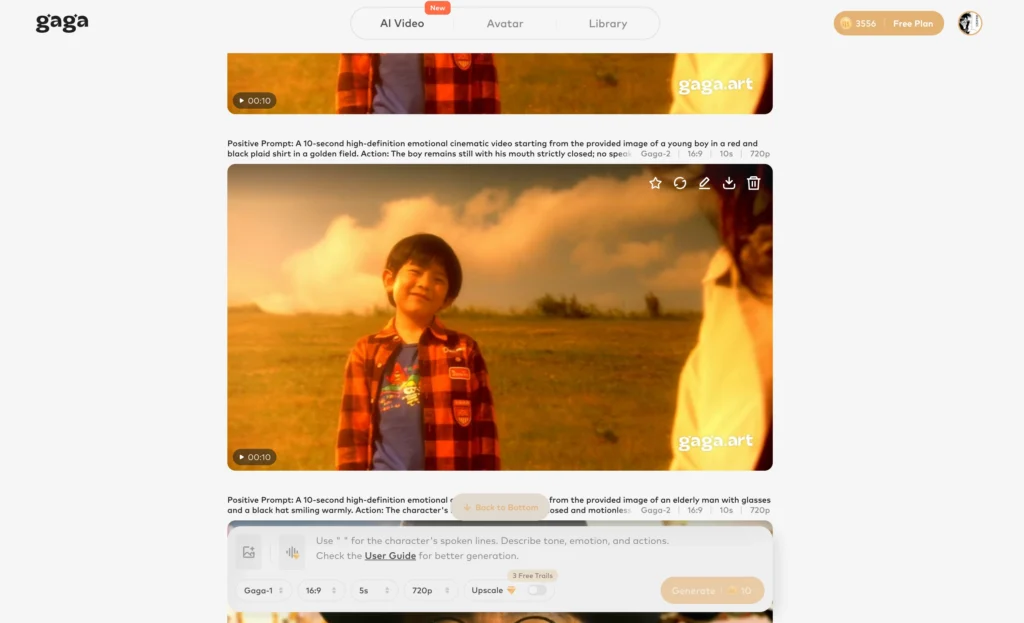
Image to Video AI Pipeline
1. Static Portrait Generation: Create custom avatars with text-to-image AI
2. LivePortrait Animation: Bring portraits to life with facial expressions
3. Voice Cloning: Generate personalized voice profiles from 10-second audio samples
4. Text-to-Speech (TTS): Convert scripts to natural speech with cloned voices
5. Lip Sync: Automatically align mouth movements to audio
Why Combine LivePortrait with Gaga AI
LivePortrait alone provides visual animation. Gaga AI adds audio-visual synchronization for:
- Multilingual content creation
- Personalized video messages
- Automated video narration
- Virtual assistant interfaces
Workflow example:
[Your Photo] → LivePortrait → [Animated Video] → Gaga AI TTS + Voice Clone → [Talking Avatar]
This combination enables full-stack avatar generation without switching between multiple platforms.
Conclusion: Why LivePortrait Matters in 2025
LivePortrait represents a paradigm shift from cloud-dependent, expensive portrait animation to accessible, real-time, local processing. With 17,000+ GitHub stars and integration into major platforms, it has proven its value beyond academic research.
Whether you’re a content creator seeking quick avatar generation, a developer building virtual assistant interfaces, or a researcher exploring portrait animation techniques, LivePortrait offers production-ready tools without the computational overhead of diffusion models.
Start your first animation today:
1. Try the Hugging Face Space (no installation)
2. Install locally following the guide above
3. Integrate into ComfyUI workflows for advanced control
The future of portrait animation is open-source, efficient, and accessible—LivePortrait is leading that future.
Frequently Asked Questions (FAQ)
What is LivePortrait used for?
LivePortrait animates static portrait photos by transferring facial expressions from driving videos. Primary use cases include virtual avatars, digital human creation, video dubbing, social media content, and live streaming enhancements.
Is LivePortrait free to use?
Yes, LivePortrait is completely free and open-source under the MIT-style license. You can use it commercially without licensing fees, though attribution to Kuaishou/KwaiVGI is appreciated.
Can LivePortrait work with videos as source input?
Yes, LivePortrait supports video-to-video (v2v) portrait editing. Use the -s flag with a video file to reanimate existing video content with new expressions while preserving original identity features.
Does LivePortrait require an internet connection?
No, once installed locally with pretrained weights downloaded, LivePortrait runs entirely offline. Internet is only needed for initial setup and model downloads.
What’s the difference between LivePortrait and DeepFake tools?
LivePortrait focuses on expression transfer while preserving source identity, whereas DeepFake swaps entire faces. LivePortrait does not replace identities—it animates existing portraits with new expressions.
Can I use LivePortrait on CPU without a GPU?
Theoretically yes, but performance will be 50-100x slower (several seconds per frame). A CUDA-compatible NVIDIA GPU is strongly recommended for practical use.
How do I improve animation quality on challenging photos?
Ensure source photos meet these criteria:
- Front-facing pose with visible facial features
- Good lighting without harsh shadows
- Minimal occlusions (no hands covering face, large accessories)
- High resolution (512×512 pixels minimum)
Use –flag_do_whitening to normalize color spaces between source and driving inputs.
Does LivePortrait work with non-human subjects?
Yes, the Animals mode supports cats and dogs. Generic object animation is not currently supported—the model is trained specifically for portraits with recognizable facial landmarks.
What file formats does LivePortrait support?
Input: JPG, PNG (images), MP4, AVI (videos) Output: MP4 video files Templates: PKL files for reusable expression data
Where can I find driving videos for LivePortrait?
The GitHub repository includes sample driving videos in assets/examples/driving/. You can also record your own using any camera—just ensure the first frame shows a frontal neutral face.