Key Takeaways
- Runway AI is a comprehensive video generation platform that creates professional videos from text prompts, images, or video clips using multiple AI models
- Four generation models available: Gen-2 (legacy), Gen-3 Alpha (fast), Gen-4 (consistency), and Gen-4.5 (highest quality)
- Eight specialized generation modes cover everything from text-to-video to stylization, storyboarding, and custom rendering
- No filming required: Generate 5-10 second video clips without cameras, actors, or physical production
- Pricing starts free with 125 credits; paid plans from $15/month provide monthly credit allocations
- Complete workflow platform: Combines AI generation with video editing, audio tools, and project management
Table of Contents
What Is Runway AI Video Generator?
Runway AI video generator is a multimodal artificial intelligence platform that synthesizes realistic video content from text descriptions, static images, or existing video clips. Unlike traditional video production that requires cameras, lighting, actors, and physical sets, Runway uses generative AI models to create video content entirely through computational processes.
The platform serves as both a video generation engine and a complete creative suite, enabling users to go from concept to finished video within a single interface. You can generate raw footage, edit it on a timeline, add effects, sync audio, and export final deliverables—all without leaving the Runway ecosystem.
Runway AI video powers three primary workflows:
- Rapid prototyping: Visualize concepts and storyboards in seconds for client presentations
- Content production: Generate B-roll, backgrounds, and supplementary footage for video projects
- Creative experimentation: Test visual ideas without the cost and time of traditional filming
The platform has gained adoption across industries—from independent filmmakers and content creators to advertising agencies and entertainment studios—because it dramatically reduces the barrier to video creation.
Runway AI Video Model Evolution: Gen-2 Through Gen-4.5
Runway has released four major model generations, each representing significant advances in quality, control, and capabilities.
Gen-2: The Foundation (2023)
Runway’s Gen-2 was the first publicly available text-to-video AI system, introducing the core concept of multimodal video generation. It established the 8-mode framework that defines Runway’s approach to video creation.
Gen-2 achievements:
- 73.53% user preference over Stable Diffusion 1.5 for image-to-image tasks
- 88.24% preference over Text2Live for video-to-video translation
- Introduced style transfer that applies image aesthetics to video structure
- Made AI video generation accessible to non-technical creators
Current status: Still available in Runway for users on legacy workflows, but most have migrated to newer models for improved results.
Gen-3 Alpha: Speed and Accessibility (2024)
Gen-3 Alpha represented a major leap in fidelity, consistency, and motion quality. Built on new infrastructure designed for large-scale multimodal training, Gen-3 Alpha was trained jointly on videos and images to better understand how static compositions translate to motion.
Key Gen-3 Alpha features:
- Fine-grained temporal control through highly descriptive captions
- Improved photorealistic human generation with expressive gestures and emotions
- Enhanced interpretation of cinematic terminology and artistic styles
- Integration with control modes like Motion Brush and Advanced Camera Controls
Gen-3 Alpha Turbo offers faster generation speeds at lower credit costs, making it ideal for rapid iteration and high-volume production.
Gen-4: Consistency Breakthrough (2024)
Gen-4 solved AI video’s biggest challenge: generating consistent characters, locations, and objects across multiple scenes. This model introduced the ability to maintain visual coherence throughout narrative sequences using single reference images.
Gen-4 innovations:
- Single-image character consistency across lighting conditions and camera angles
- Object persistence—place any subject in multiple locations without visual drift
- Multi-angle scene generation from reference images
- Superior world understanding and physics simulation
- No fine-tuning required for consistency features
Gen-4 made it possible to create multi-shot narratives with recurring characters—unlocking serialized content, branded mascot videos, and character-driven storytelling.
Gen-4.5: Current Flagship (2025)
Gen-4.5 holds the #1 position in the Artificial Analysis Text-to-Video benchmark with 1,247 Elo points, representing state-of-the-art video generation.
Gen-4.5 advances:
- Unprecedented physical accuracy (realistic weight, momentum, fluid dynamics)
- Precise prompt adherence for complex multi-element scenes
- Diverse stylistic range from photorealistic to stylized animation
- Maintained speed and efficiency of Gen-4 without performance trade-offs
- Same pricing as Gen-4 across all subscription tiers
Gen-4.5 maintains all consistency features from Gen-4 while significantly improving output quality and reliability.
How Runway AI Video Generation Technology Works
Runway AI video operates through multimodal foundation models trained on millions of video-image pairs to understand the relationship between language, visual composition, motion, and physics.
The Core Generation Process
Step 1: Input Processing When you provide a text prompt, image, or video clip, Runway’s models analyze it for:
- Semantic meaning (what objects, actions, and scenes are described)
- Spatial relationships (how elements are positioned and interact)
- Temporal dynamics (how motion unfolds over time)
- Stylistic attributes (visual aesthetics, lighting, cinematography)
Step 2: Latent Space Generation The AI maps your input to a “latent space”—a mathematical representation of possible visual outcomes. This space encodes patterns learned from training data about how real-world objects move, how light behaves, and how camera perspectives work.
Step 3: Frame Synthesis The model generates video frame-by-frame, maintaining temporal coherence so objects don’t morph unexpectedly and motion flows naturally. Each frame considers previous frames to ensure consistency.
Step 4: Refinement Post-processing enhances quality, applies stylistic filters, and ensures the output matches your specified resolution and aspect ratio.
Three Core Input Methods
Text to Video: Pure language-to-vision generation where written descriptions become video. The AI interprets not just objects but also mood, pacing, and cinematic techniques described in natural language.
Image to Video: Upload a reference image that becomes the visual template. Runway generates motion that respects the image’s composition, lighting, and style while adding realistic movement.
Video to Video: Transform existing footage by applying new styles, changing subjects, or modifying scenes while preserving the original motion structure and camera work.
8 Generation Modes: Complete Runway AI Toolkit
Runway AI video editor provides eight specialized modes, each designed for specific creative workflows and use cases.
Mode 1: Text to Video
Transform written descriptions into video without any visual reference. This pure language-to-vision generation interprets your prompt’s semantic meaning, stylistic cues, and motion instructions to synthesize completely new footage.
Best for: Original content creation, concept exploration, generating footage that doesn’t exist in reality.
Example: “A steaming cup of coffee on a rainy window sill, droplets sliding down the glass, soft afternoon light, 35mm film aesthetic”
Mode 2: Text + Image to Video
Combine a reference image with text instructions for hybrid control. The image provides visual style, composition, and subject matter while text adds specific motion directions and scene modifications.
Best for: Directing how specific images should animate, adding context to existing visuals, fine-tuning motion behavior.
Example: Upload a portrait photo + “Camera slowly pushes in while subject turns head and smiles”
Mode 3: Image to Video (Variations Mode)
Generate multiple video interpretations from a single image. Each variation explores different motion patterns, timing, and camera movements while maintaining the source image’s visual character.
Best for: Exploring creative options, generating alternative takes, finding unexpected motion patterns.
Mode 4: Stylization
Apply the visual style of any reference image or text prompt to every frame of an existing video. This mode transfers color grading, texture, artistic aesthetic, and lighting characteristics while preserving the original video’s motion and composition.
Best for: Style transfer, applying branded looks, artistic reinterpretation, creating visual effects without manual rotoscoping.
Example: Apply a watercolor painting style to live-action footage, converting realistic video to animated aesthetics.
Mode 5: Storyboard
Convert static mockups, sketches, and wireframes into fully animated renders. This mode bridges the gap between pre-production visualization and animated sequences.
Best for: Animatics, pre-visualization, client presentations, transforming storyboards into motion references.
Use case: Upload a series of concept sketches for a commercial and generate an animated storyboard that shows timing, pacing, and transitions.
Mode 6: Mask
Isolate and animate specific regions within your video while leaving other areas unchanged. Draw masks around elements you want to modify, then apply generation only to those masked areas.
Best for: Selective editing, removing unwanted elements, adding isolated motion, creating composite effects.
Example: Mask the sky in a video and regenerate it with dramatic storm clouds while keeping the foreground untouched.
Mode 7: Render
Transform untextured 3D renders or wireframe animations into photorealistic footage. Apply reference images or text prompts to add realistic materials, lighting, and surface details to basic 3D geometry.
Best for: Enhancing 3D animations, adding realism to CGI, bridging 3D modeling and live-action aesthetics.
Workflow: Export a basic 3D animated character from Blender → Use Runway Render mode → Get photorealistic textured output with skin detail, fabric, and lighting.
Mode 8: Customization
Fine-tune Runway’s base models with your own training data for higher fidelity results tailored to specific visual styles, brand aesthetics, or subject matter.
Best for: Enterprise applications requiring brand consistency, specialized visual styles, recurring characters or environments.
Note: Customization requires substantial training data (hundreds of reference images/videos) and is primarily available for Pro and Enterprise customers.
Step-by-Step: How to Use Runway AI Video Generator
Getting Started (First 10 Minutes)
Step 1: Create your account
Visit runwayml.com and sign up with email or Google account. No credit card required for the Free tier, which includes 125 one-time credits.
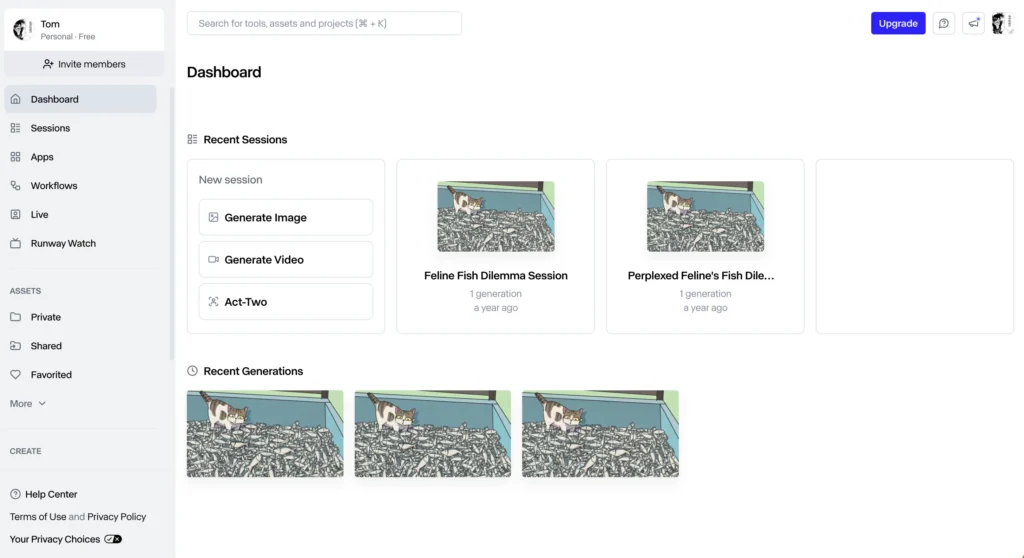
Step 2: Explore the dashboard
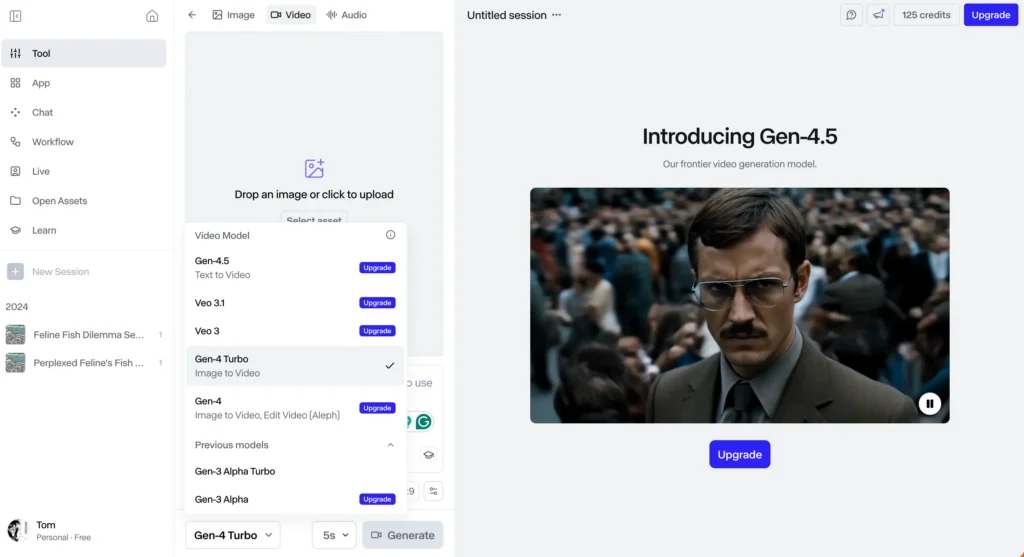
The left sidebar contains all generation tools:
- Gen-4.5 (text-to-video, highest quality)
- Gen-4 (image-to-video, consistency features)
- Gen-3 Alpha Turbo (fast generation, lower cost)
- Aleph (video editor)
- Act-Two (performance capture)
- Additional tools (image generation, upscaling, audio)
Step 3: Select your starting point
Choose based on what you have:
- No visuals yet → Text to Video
- Have a reference image → Image to Video
- Have existing footage → Video to Video or Stylization
Generating Your First Video with Text to Video
Step 1: Navigate to Gen-4.5 or Gen-3 Alpha
Gen-4.5 provides highest quality but costs more credits. Gen-3 Alpha Turbo offers faster generation at lower cost—ideal for testing ideas.
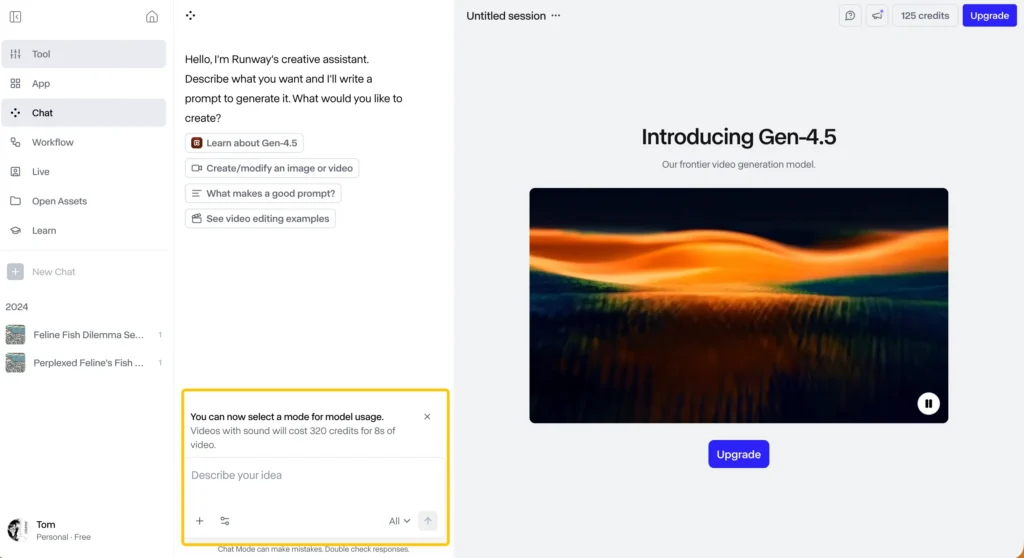
Step 2: Craft your prompt
Effective prompts include four elements:
Subject: What appears in the scene
- “A red vintage car” vs. “A 1967 Ford Mustang”
- Specificity improves accuracy
Action: What’s happening
- “driving down a desert highway at sunset”
- Verbs drive motion synthesis
Style: Visual aesthetic
- “cinematic, anamorphic lens, film grain”
- Runway understands technical cinematography terms
Camera: Perspective and movement
- “tracking shot following from behind”
- Specifies how the virtual camera behaves
Complete example: “A 1967 red Ford Mustang driving down a desert highway at sunset, cinematic anamorphic lens with film grain, tracking shot following from behind, dust trailing in golden hour light”
Step 3: Configure generation settings
Duration: 5 seconds or 10 seconds
- Gen-4.5: 5 seconds = 12 credits, 10 seconds = 25 credits
- Gen-3 Alpha Turbo: 5 seconds = 5 credits, 10 seconds = 10 credits
Aspect ratio: Choose based on platform
- 16:9 (YouTube, traditional video)
- 9:16 (TikTok, Instagram Stories, mobile)
- 1:1 (Instagram feed, square format)
Seed: Random or locked
- Random generates different results each time
- Locked seed maintains consistency across prompt iterations
Step 4: Generate and wait
Click “Generate” button. Processing takes 60-120 seconds depending on model and server load. The interface shows a progress indicator.
Step 5: Review and refine Watch your generated clip. If results don’t match expectations:
- Add more descriptive details to prompt
- Specify lighting (“overcast daylight” vs. “neon nightclub lighting”)
- Include reference styles (“like a Wes Anderson film”)
- Adjust motion descriptors (“slow motion” vs. “time-lapse”)
Generating Videos with Runway AI Image to Video
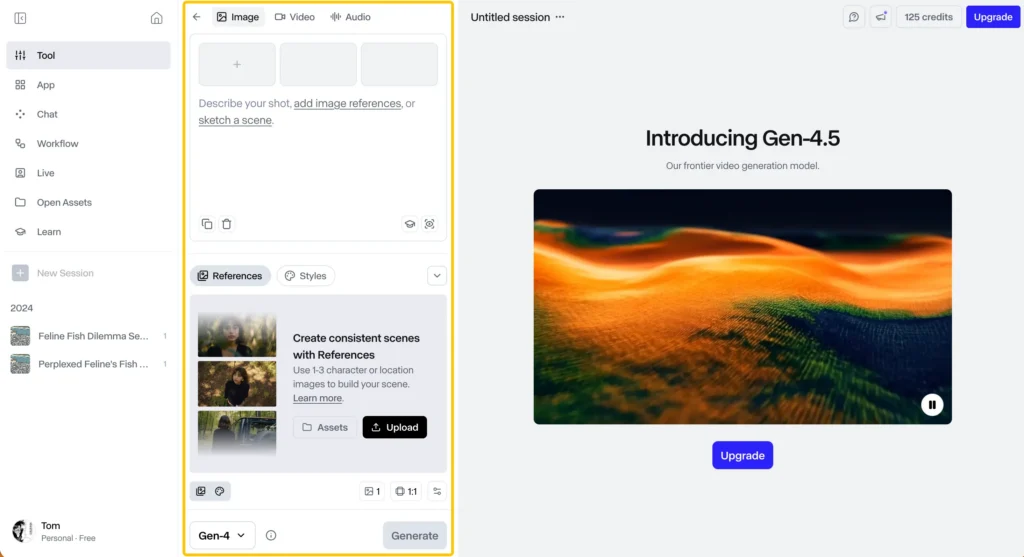
Step 1: Prepare your reference image
- Resolution: 1920×1080 or higher produces cleaner results
- Composition: Center-weighted subjects with clear backgrounds work best
- Clarity: High contrast, sharp focus improves generation quality
Step 2: Upload to Image to Video mode
Drag and drop your image or click to browse. Runway displays a preview.
Step 3: Optional text prompt Add motion instructions if you want specific behavior:
- “Camera slowly zooms in”
- “Subject turns head and looks at camera”
- “Leaves blow gently in the breeze”
Leave blank for Runway to determine natural motion autonomously.
Step 4: Adjust motion intensity slider
- Low (1-3): Subtle ambient motion, slight camera drift
- Medium (4-7): Noticeable movement, clear action
- High (8-10): Dramatic motion, significant scene changes
Step 5: Generate and iterate First results may not be perfect. Regenerate with adjusted motion intensity or refined text prompts until you achieve desired movement.
Using Consistent Characters (Gen-4)
Step 1: Create or upload character reference
Generate an ideal character shot with Gen-4 Text-to-Image, or upload your own illustration/photo. This becomes your consistency reference.
Step 2: Enable character consistency
In Gen-4 settings, select “Use Character Reference” and upload your image.
Step 3: Generate multiple scenes
Write prompts for different scenarios:
- “Character walking through a busy city street, medium shot”
- “Same character sitting at a cafe, close-up, natural lighting”
- “Character running in a park, wide shot, golden hour”
Gen-4 maintains character appearance, clothing, and distinctive features across all generations.
Step 4: Multi-angle generation
Regenerate the same scene from different camera angles:
- Front view → Profile view → Three-quarter view
- Character identity remains consistent
Applications: Serialized content, branded mascots, narrative filmmaking, product demonstrations with consistent models.
Runway AI Video Pricing & Credit Economics
Runway operates on a monthly credit allocation system where different operations consume varying credit amounts. Understanding credit economics helps optimize your spending.
| Plan | Cost (Monthly) | Credits | Key Features | Best For |
| Free | $0 | 125 (One-time) | Watermarked outputs, 5GB storage, No Gen-4.5 video. | Testing tools & learning the interface. |
| Standard | $15 | 625 (Monthly) | No watermarks, 100GB storage, access to all models. | Individual creators (2-4 videos/mo). |
| Pro | $35 | 2,250 (Monthly) | Custom voice creation, 500GB storage, priority queue. | Professional producers & weekly YouTubers. |
| Unlimited | $95 | 2,250 + Unlimited* | Explore Mode (unlimited relaxed generations), high storage. | Studios & daily content creators. |
| Enterprise | Custom | Custom | SSO, API access, dedicated account management. | Large teams (50+) & high-security studios. |
Runway AI Video Editor: The Complete Workflow
Runway isn’t just a generation tool—Aleph provides a full timeline-based video editor for post-processing generated clips alongside traditional footage.
Aleph Video Editor Features
Multi-track timeline: Drag generated clips onto a professional timeline with unlimited video and audio tracks. Arrange scenes, adjust timing, and create complex sequences.
Integrated asset management: All generated videos automatically appear in your project library. No manual downloading or file management required.
Effects and transitions: Apply cuts, fades, dissolves, and wipes between clips. Add color grading and basic effects.
Text and graphics: Overlay titles, captions, and lower thirds. Customize fonts, colors, and animations.
Audio tools: Sync soundtracks, add sound effects, adjust audio levels, and mix multiple audio sources.
Export options:
- Resolution up to 4K (Pro plan and above)
- Multiple format options (MP4, MOV)
- Direct export to YouTube, Vimeo, or download locally
Complete Workflow Example
Project: 60-second product showcase video
Step 1: Generate product footage (15 minutes)
- Use Image-to-Video with product photo
- Generate 3 different angles (5 credits each = 15 credits)
- Generate lifestyle context shots with Text-to-Video (20 credits)
Step 2: Edit in Aleph (20 minutes)
- Arrange clips on timeline
- Add transitions between shots
- Overlay brand logo and product name
- Sync background music
Step 3: Export and deliver (5 minutes)
- Export at 1080p for web
- Download file or share direct link
Total time: 40 minutes from concept to finished video Total cost: 35 credits (under $2 worth on Standard plan)
This integrated workflow eliminates jumping between multiple applications, streamlining production from ideation through final delivery.
Advanced Runway AI Techniques
Prompt Engineering for Better Results
Principle 1: Lead with subject and action
“A woman running through a field” works better than “There is a field and someone is running”
- Clear subject + strong verb = better generation
Principle 2: Use cinematic terminology
Runway understands film language:
- Camera movements: dolly, tracking shot, crane shot, handheld
- Lenses: wide angle, telephoto, fisheye, macro
- Techniques: rack focus, shallow depth of field, bokeh
- Lighting: Rembrandt lighting, rim lighting, practical lights
Principle 3: Reference styles explicitly
“Shot like a Christopher Nolan film” or “in the style of Studio Ghibli animation” gives the AI stylistic direction.
Principle 4: Specify temporal pacing
- “slow motion” vs. “time-lapse” vs. “real-time”
- Controls how motion unfolds
Multi-Shot Sequences with Consistency
Create narrative continuity by combining character consistency features with strategic prompting:
Scene 1: Generate character reference
- “Professional portrait of a young woman with short black hair, business attire, studio lighting”
Scene 2-5: Use as a consistency reference
- “Woman entering office building, walking through lobby”
- “Woman at desk typing on laptop, over-shoulder shot”
- “Woman in meeting room presenting to colleagues”
- “Woman leaving building at sunset, relieved expression”
Each scene maintains character appearance while showing different locations and actions—enabling serialized storytelling.
Hybrid Workflows: Combining Tools
Runway + Midjourney/DALL-E: Generate high-quality still images with specialized image models → Animate in Runway Image-to-Video for motion
Runway + Traditional Footage: Film live-action plates → Generate AI backgrounds or VFX elements → Composite in Aleph or external editor
Runway + 3D Software: Create 3D animation in Blender → Export as basic render → Enhance with Runway’s Render mode for photorealistic textures
Comparing Runway AI to Alternatives
While Gaga AI represents a competing platform in the AI video generation space, Runway maintains distinct advantages:
Runway AI Strengths
Model variety: Four generation models (Gen-2, Gen-3 Alpha, Gen-4, Gen-4.5) optimized for different use cases and budgets
Consistency features: Industry-leading character and object persistence across shots
Mode diversity: Eight specialized generation modes for different creative workflows
Integrated workflow: Combined generation, editing, and export in single platform
Enterprise features: SSO, custom models, compliance tools, dedicated support
Research leadership: Runway Research actively publishes advances in video generation and world models
Alternative Platform Considerations
Gaga AI focuses on:
- Faster generation speeds
- Lower cost per video second
- Simplified interface for beginners
- Specialized anime and illustration styles
Decision framework:
- Choose Runway for: Professional production quality, narrative consistency, advanced control, enterprise integration
- Consider alternatives for: Budget constraints, rapid prototyping, specific artistic styles, simple use cases
Frequently Asked Questions
What is Runway AI video generator?
Runway AI video generator is a cloud-based platform that creates realistic video content from text descriptions, images, or video clips using generative AI models, eliminating the need for traditional filming equipment, actors, or physical production.
How much does Runway AI video cost?
Runway offers a free tier with 125 one-time credits. Paid plans start at $15/month (625 credits), $35/month (2,250 credits), or $95/month (2,250 credits plus unlimited relaxed generations). Enterprise pricing is custom.
Can I use Runway AI video for free?
Yes, the Free plan includes 125 one-time credits sufficient for approximately 25 seconds of Gen-4 Turbo video or multiple image generations. No credit card required for signup, though features are limited.
What’s the difference between Runway’s Gen-2, Gen-3, Gen-4, and Gen-4.5?
Gen-2 (2023) introduced multimodal video generation. Gen-3 Alpha (2024) improved fidelity and motion with faster processing. Gen-4 (2024) added consistent character and object generation across scenes. Gen-4.5 (2025) delivers highest quality with superior physics and prompt accuracy.
How do I use Runway AI image to video?
Upload a reference image to Runway’s Image-to-Video mode, optionally add a text prompt describing desired motion, adjust the motion intensity slider, select duration and aspect ratio, then click Generate. The AI creates video that maintains your image’s visual style while adding natural movement.
What video formats does Runway AI support?
Runway generates videos in MP4 and MOV formats at various resolutions (720p standard, up to 4K with upscaling). Aspect ratios include 16:9 (widescreen), 9:16 (vertical), and 1:1 (square).
Can Runway AI video editor create long videos?
Individual generations max at 10 seconds. Create longer videos by generating multiple clips and stitching them in Runway’s Aleph editor. The editor supports unlimited timeline length for assembling extended sequences.
Does Runway AI work on mobile devices?
Runway is accessible through web browsers on mobile devices, though the interface is optimized for desktop. Full feature access including generation and editing requires modern browsers and stable internet connections.
What are Runway AI video credits?
Credits are Runway’s usage currency. Different operations cost varying credits: Gen-4.5 video costs 12 credits per 5 seconds, Gen-4 costs 6 credits per 5 seconds, Gen-3 Alpha Turbo costs 5 credits per 5 seconds. Monthly plans include credit allocations.
Can I generate consistent characters in Runway AI?
Yes, Gen-4 and Gen-4.5 support character consistency features. Upload a single reference image, enable consistency mode, then generate multiple scenes—the AI maintains character appearance, clothing, and features across all shots without additional training.
Is Runway AI video suitable for commercial projects?
Yes, videos generated with paid plans can be used commercially. Review Runway’s terms of service for specific licensing details. Free tier outputs have usage restrictions and include watermarks.
How long does Runway AI video generation take?
Generation typically requires 60-120 seconds per clip depending on model selection, duration, and server load. Pro and Unlimited plans offer priority queue access for faster processing.
What makes Runway AI different from other video generators?
Runway offers four distinct model generations optimized for different needs, eight specialized generation modes, industry-leading consistency features for narrative content, integrated video editing, and enterprise-grade customization options unavailable in most competing platforms.
Can I train Runway AI on my own videos?
Mode 8 (Customization) allows fine-tuning Runway’s base models with custom training data for Pro and Enterprise customers. This requires substantial reference material (hundreds of images/videos) and enables brand-specific visual styles.
Does Runway AI video editor require technical skills?
No programming or technical expertise required. The interface uses natural language prompts and drag-and-drop controls. Basic understanding of video concepts (aspect ratios, frame rates) helps but isn’t mandatory for generating quality results.
Related Posts:
 15 Best AI Video Generators in 2025 (Free & Paid Options)
 Kling O1: Complete Guide to the World’s First Unified Multimodal Video Generation Model (2026)
 Avatar Maker: The Best AI Video Generators (HeyGen vs. Gaga AI) & How to Use Them
 Invideo AI Video Generator: Complete Guide to Features, Pricing & Free Alternatives