Key Takeaways
- Free AI photo animation tools let you transform static images into moving videos using artificial intelligence—no advanced skills required
- Top free options include Nano Banana Pro, Canva, Meta AI, Oiioii, and Monica, each offering different animation styles and capabilities
- Most tools work in three steps: upload your photo, select animation settings, and download your animated result in under 2 minutes
- Best use cases include social media content, presentations, digital memories, and creative storytelling
- Quality varies significantly between tools—understanding each platform’s strengths helps you choose the right one for your project
Table of Contents
What Does It Mean to Animate Photos?
Photo animation transforms static images into dynamic, moving content using AI algorithms that predict motion, add subtle movements, or convert pictures into short video clips. Modern AI tools analyze depth, facial features, and subject matter to create realistic animations—from subtle breathing effects to full 3D motion parallax.
Unlike traditional video editing that requires frame-by-frame manipulation, AI photo animation happens automatically. You upload an image, the AI processes it within seconds, and you receive a moving version ready to share.
The 8 Best Free AI Tools to Animate Photos
1. Nano Banana Pro
Nano Banana Pro specializes in portrait animation with exceptional facial expression control. The platform uses advanced deep learning models to animate faces with realistic micro-movements—blinking, slight head turns, and natural breathing motions.
Best for: Animating portraits, historical photos, and character designs
Key features:
- One-click facial animation with emotion presets
- Supports both modern and vintage photographs
- Exports in MP4 and GIF formats
- Free tier allows 10 animations per month
How to use:
a. Upload your portrait photo (JPG or PNG)
b. Select animation intensity (subtle, moderate, dramatic)
c. Choose optional emotion overlay (smile, surprise, neutral)
d. Process and download your animated result
2. Canva
Canva’s photo animation features integrate seamlessly into its design ecosystem, making it ideal for creators already using the platform. The tool offers both automatic animation and manual control over motion paths.
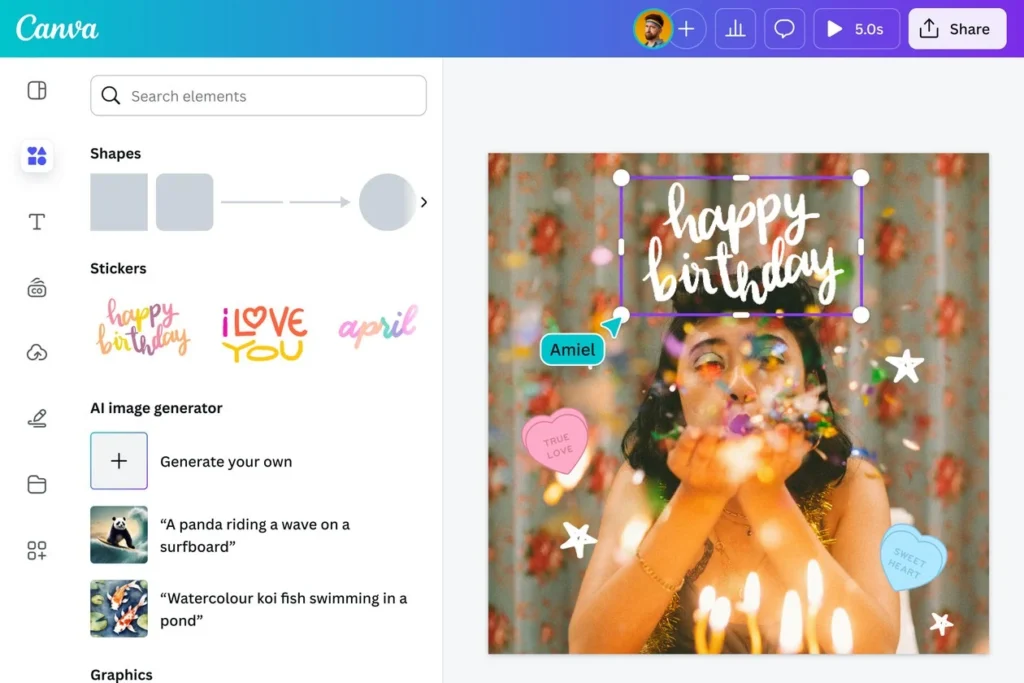
Best for: Social media posts, presentations, and marketing graphics
Key features:
- Drag-and-drop interface with zero learning curve
- Pre-built animation templates for common use cases
- Combines static and animated elements in single designs
- Free plan includes basic animations
How to use:
a. Create a new design or open existing project
b. Upload your photo to the canvas
c. Select the image and click “Animate”
d. Choose from pan, zoom, breathe, or custom motion effects
e. Adjust timing and download as MP4 or GIF
3. Oiioii
Oiioii stands out as a specialized AI photo animator with powerful motion prediction capabilities. The platform excels at creating smooth, cinematic animations from still images using advanced neural networks that understand scene composition and depth.
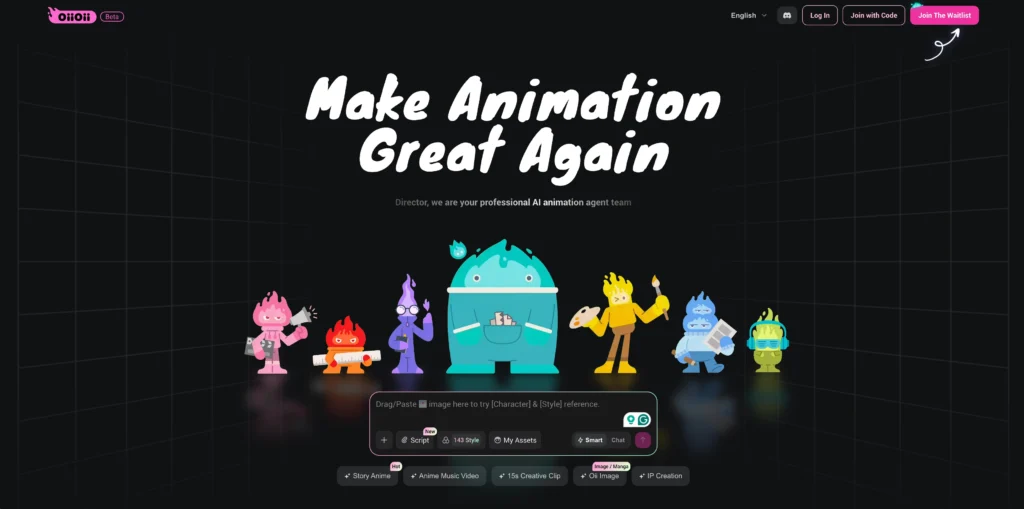
Best for: Creating professional-quality animations with cinematic effects
Key features:
- AI-driven motion prediction for natural-looking animations
- Multiple animation styles including slow-motion and time-lapse effects
- Smart depth detection for 3D-like camera movements
- High-quality exports without quality degradation
- Intuitive interface designed for both beginners and professionals
How to use:
a. Upload your photo to the Oiioii platform
b. Select from preset animation styles or customize motion direction
c. Adjust depth intensity and movement speed
d. Preview your animation in real-time
e. Export in your preferred format and resolution
Unique advantage: Oiioii’s AI particularly excels at detecting foreground and background separation, creating parallax effects that make flat photos appear three-dimensional. The tool also handles action shots and dynamic scenes better than most competitors.
Limitations: Free tier may include processing queue during peak hours
4. Monica
Monica delivers AI-powered motion effects that work particularly well for landscape and travel photography. The platform uses depth mapping to create parallax effects that simulate 3D camera movement through 2D images.
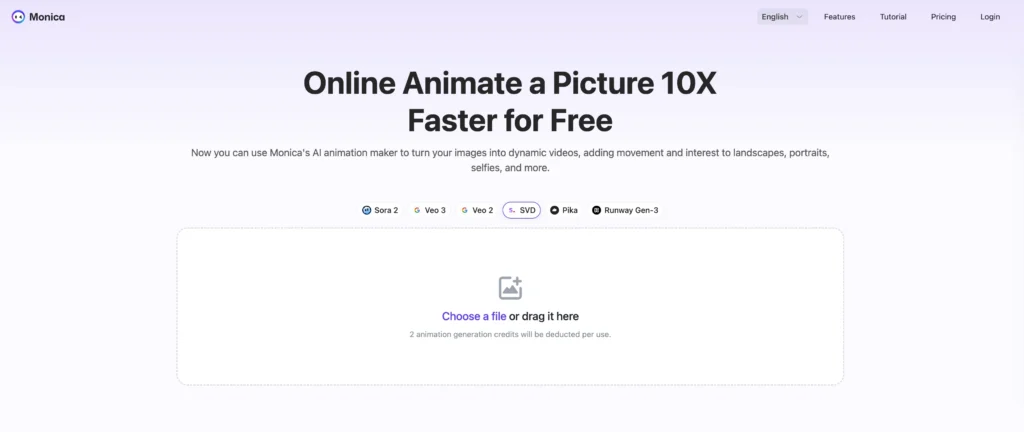
Best for: Landscape photos, architectural images, and scenic photography
Key features:
- 3D parallax effect generation from single images
- Ken Burns-style panning and zooming
- Batch processing for multiple photos
- Cloud-based processing (no software installation)
Limitations: Free tier adds small watermark to exports
5. Adobe Express (formerly Adobe Spark)
Adobe’s free web tool brings professional animation capabilities without the complexity of Photoshop or After Effects. It focuses on practical animations for everyday creators.
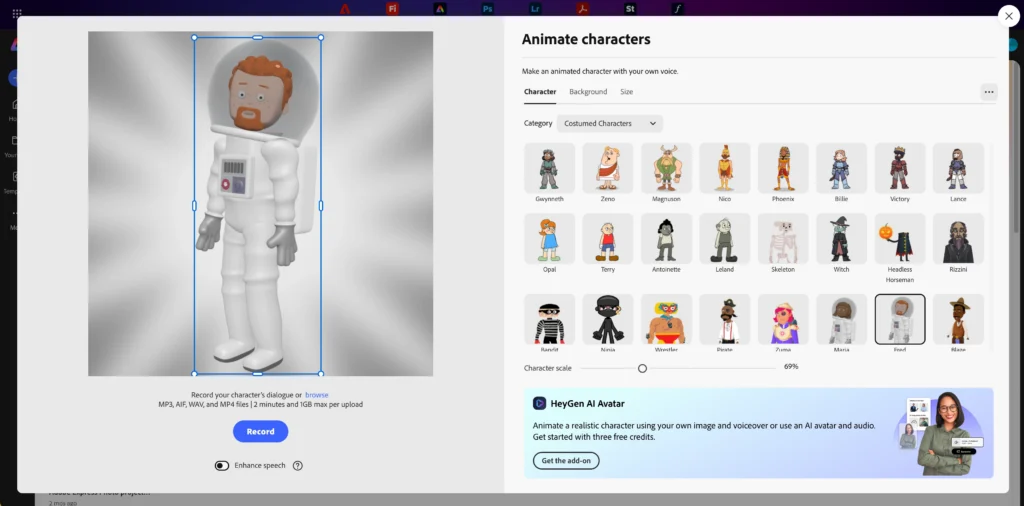
Best for: Quick social content and professional presentations
Key features:
- Integration with Adobe stock library
- Smart animation that recognizes subject matter
- Multiple export resolutions including 4K
- 2GB cloud storage on free plan
Unique advantage: Animations can be directly shared to social platforms without downloading
6. Kapwing
Kapwing positions itself as an all-in-one creative suite with robust photo animation tools embedded within a broader video editing platform.
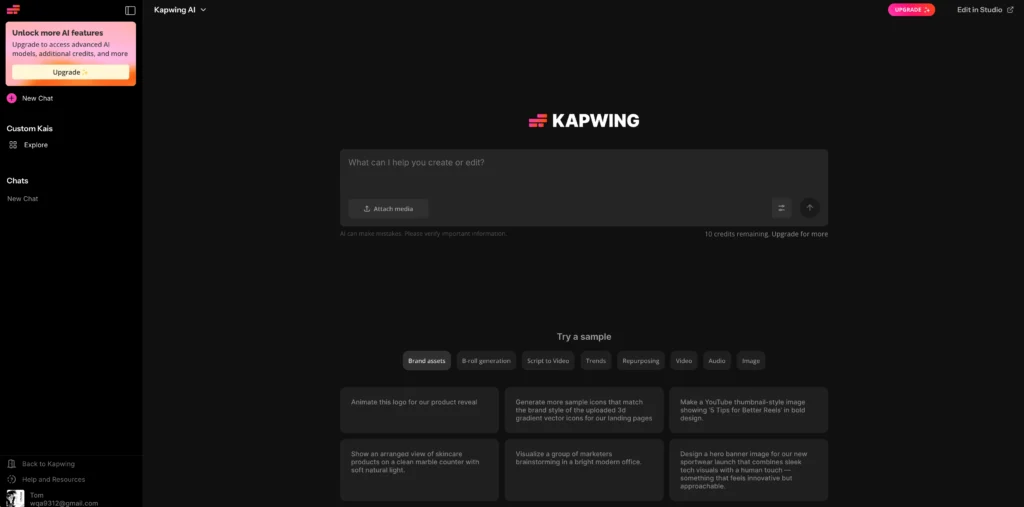
Best for: Creators who need animation plus additional video editing
Key features:
- AI-powered motion prediction for natural animations
- Add text, music, and effects to animated photos
- Collaborative features for team projects
- Works entirely in browser
How to animate photos in Kapwing:
a. Navigate to the Kapwing editor
b. Upload your image
c. Select “Animate” from the effects menu
d. Apply zoom, pan, or fade animations
e. Combine multiple animated photos into video sequences
7. Meta AI
Meta’s free AI animation tool leverages the company’s advanced machine learning research. It excels at creating animated avatars and bringing profile pictures to life.
Best for: Social media avatars and casual personal use
Key features:
- Instant animation through simple prompts
- Optimized for Facebook and Instagram formats
- No signup required for basic features
- Fast processing (under 30 seconds)
Privacy note: Review Meta’s data usage policy before uploading personal photos
8. Leonardo AI + Gaga AI
Leonardo AI (text-to-image) combined with Gaga AI (image-to-video) creates a powerful workflow for generating and animating photos from scratch.
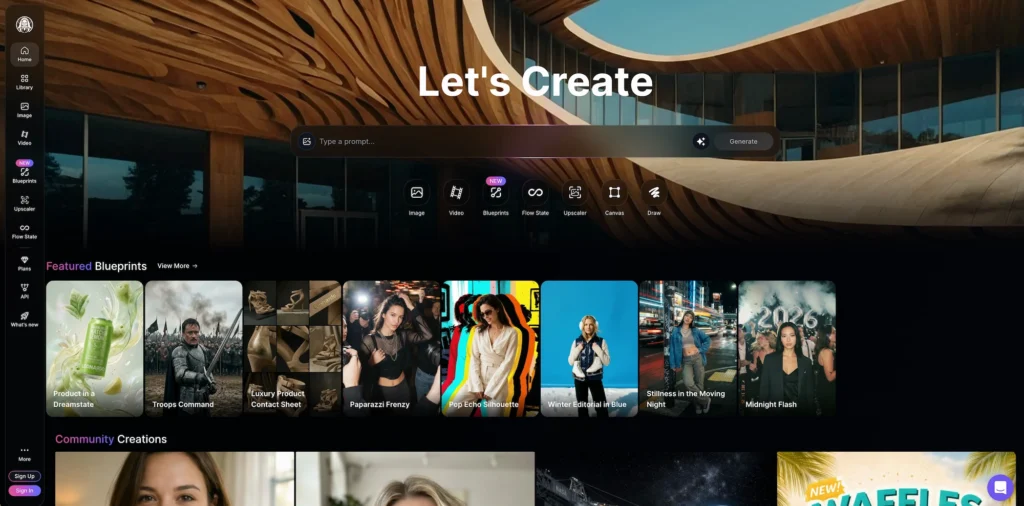
Best for: Creative projects starting from text descriptions
Workflow:
a. Generate images with Leonardo AI using text prompts
b. Export generated images
c. Import to Gaga AI for video animation
d. Download animated results
Key advantage: Complete creative control from concept to animated output
How to Animate Photos for Free: Step-by-Step Guide
Method 1: Basic Portrait Animation (Beginner-Friendly)
Time required: 2-3 minutes per photo
Choose your tool based on photo type (Nano Banana Pro for portraits, Oiioii or Monica for landscapes)
- Prepare your image: Ensure good resolution (minimum 512×512 pixels) and clear subject focus
- Upload your photo through the platform’s interface
- Select animation style: Start with subtle movements for natural results
- Preview the result before downloading
- Export in your preferred format (MP4 for social media, GIF for websites)
- Adjust if needed: Most tools allow you to regenerate with different settings
Method 2: Advanced Animation with Multiple Effects
Time required: 5-10 minutes per photo
- Use Canva, Oiioii, or Kapwing for layered animation control
- Upload your photo and duplicate it on multiple layers
- Apply different animations to each layer (one zooms while another pans)
- Add complementary elements like text overlays or music
- Fine-tune timing so effects complement rather than compete
- Export at highest available quality for your free tier
Pro Tips for Better Results
Image quality matters most: High-resolution photos (1080p+) produce noticeably better animations than small or compressed images.
Subject clarity improves AI performance: Photos with clear subject separation from background animate more realistically—tools like Oiioii particularly benefit from well-defined depth layers.
Lighting affects animation quality: Well-lit, evenly exposed photos give AI more visual information to work with.
Less is more with intensity: Subtle animations often look more professional than dramatic effects.
Common Problems When You Animate Photos (And Solutions)
Issue 1: “My Animated Photo Looks Unnatural or Warped”
Cause: The AI struggles with complex scenes, low resolution, or extreme compression.
Solutions:
- Use higher resolution source images (minimum 1024×1024)
- Reduce animation intensity in settings
- Try a different tool—Oiioii often handles complex scenes better than basic animators
- Crop to focus on a single subject rather than busy scenes
Issue 2: “The File Size Is Too Large to Share”
Cause: Video formats create larger files than static images.
Solutions:
- Export as GIF instead of MP4 for smaller file sizes
- Reduce output resolution (720p instead of 1080p)
- Shorten animation duration (2-3 seconds vs. 5+ seconds)
- Use compression tools like HandBrake after export
Issue 3: “Faces Look Creepy or Distorted”
Cause: AI facial animation algorithms struggle with certain angles, expressions, or photo quality.
Solutions:
- Use photos with faces looking directly at camera
- Ensure faces are well-lit and in focus
- Try Nano Banana Pro specifically (specialized in facial animation)
- Lower the animation intensity setting
- Avoid animating photos where faces are partially obscured
Issue 4: “My Photo Won’t Upload or Process”
Cause: File format incompatibility, size limits, or browser issues.
Solutions:
- Convert photos to JPG or PNG format
- Resize images under 10MB before uploading
- Clear browser cache and cookies
- Try a different browser (Chrome typically offers best compatibility)
- Check your internet connection stability
Animate Photo Maker vs. Animate Photo Generator: Understanding the Tools
These terms often appear interchangeably, but there’s a subtle distinction:
Animate Photo Maker typically refers to tools that apply predefined animation templates to your existing photos. Think of Canva’s animation presets or Adobe Express’s effect library. You’re “making” an animation by applying existing patterns.
Animate Photo Generator usually describes AI-powered tools that generate novel animations based on analyzing your specific image. Tools like Nano Banana Pro, Oiioii, and Monica use generative AI to create unique motion for each photo.
In practice: Most modern tools combine both approaches. They use AI to understand your image (generator) while offering preset styles you can apply (maker).
Which should you use? Makers work faster and offer predictable results. Generators provide more customization and often produce more natural-looking animations.
How to Choose the Right Free Photo Animation Tool
Match the tool to your specific needs using this decision framework:
Choose Nano Banana Pro when:
- Animating portraits or faces is your primary goal
- You want realistic facial micro-expressions
- Working with historical or vintage photos
Choose Canva when:
- Creating social media content is your main use case
- You need animation plus text and design elements
- You prefer an intuitive, no-learning-curve interface
Choose Oiioii when:
- You need professional-quality cinematic animations
- Working with photos that have complex depth layers
- Want smooth, natural-looking motion prediction
- Require high-quality exports without degradation
Choose Monica when:
- Animating landscapes, architecture, or scenic photos
- You want 3D parallax effects
- Batch processing multiple similar images
Choose Kapwing when:
- You need animation as part of broader video editing
- Collaborating with team members on projects
- Creating video sequences from multiple animated photos
Choose Meta AI when:
- Making quick social avatars or profile pictures
- You prioritize speed over customization
- Already active in Meta’s ecosystem
Choose Adobe Express when:
- You need professional-quality results
- Working on business or client projects
- Integration with other Adobe tools matters
Choose Leonardo AI + Gaga AI when:
- Starting from concepts rather than existing photos
- Creating entirely new animated content
- Maximum creative control is essential
Frequently Asked Questions (FAQ)
Can I animate photos on my phone for free?
Yes, most AI photo animation tools work directly in mobile browsers without requiring app downloads. Canva, Meta AI, Oiioii, and Monica all offer mobile-responsive interfaces. For the best experience, use tools through Chrome or Safari on smartphones with at least 4GB of RAM to handle AI processing smoothly.
How long does it take to animate a photo using AI?
Most free AI tools process photo animations in 30-90 seconds depending on image complexity, resolution, and server load. Simple portrait animations with Nano Banana Pro typically complete in under 45 seconds, while complex landscape parallax effects in Monica or Oiioii may take up to 2 minutes. Batch processing multiple photos can take 5-10 minutes.
Do I own the copyright to animated photos I create?
Copyright depends on both your source image rights and the tool’s terms of service. If you own the original photo, you generally retain rights to the animated version for personal use. Commercial usage rights vary—Canva’s free tier restricts commercial use, while Adobe Express allows it. Always review each platform’s licensing terms before using animated photos professionally.
Can I animate old black and white photos?
Yes, AI animation tools work excellently with black and white photographs including vintage family photos. Nano Banana Pro, Oiioii, and Monica both handle black and white images well. For best results, scan old photos at high resolution (300 DPI minimum) and use basic photo editing to improve contrast before animating.
What file format should I use for animated photos?
Export as MP4 for highest quality and best compatibility with social media platforms (Instagram, Facebook, TikTok). Choose GIF format when you need smaller file sizes, transparency support, or plan to embed animations on websites. MP4 files generally produce smoother animations with better compression than GIFs.
Are there completely free tools with no watermarks?
Meta AI and some features in Canva’s free tier produce watermark-free animations, though with usage limitations. Most dedicated animation tools add watermarks on free plans. If watermark-free output is essential, consider Adobe Express’s free tier or export from Canva and crop the watermark area (only viable for specific placement).
Can I animate multiple people in one photo?
Yes, advanced AI tools can animate multiple faces in group photos, though results vary by tool sophistication. Nano Banana Pro handles up to 4-5 faces effectively in one image. For larger groups, animation quality decreases—consider cropping to smaller groups or using simpler pan/zoom effects instead of facial animation.
How much storage space do animated photos require?
A 3-second animated photo at 1080p resolution typically requires 2-5MB in MP4 format or 3-8MB as a GIF. Higher resolutions, longer durations, and complex animations increase file sizes proportionally. Most platforms compress output automatically, but you can further reduce file sizes using free compression tools if needed.
Can I animate photos for commercial projects using free tools?
Commercial usage rights depend on each tool’s specific terms of service. Canva’s free plan restricts commercial use; upgrading to Pro unlocks commercial rights. Adobe Express allows commercial use even on free tiers. Meta AI’s terms prohibit commercial usage without explicit licensing. Always verify licensing before using animated content in paid projects, advertisements, or client work.
What makes AI photo animation different from creating a video?
AI photo animation starts with a single static image and uses algorithms to generate motion, while traditional video captures real movement frame-by-frame. Animation AI predicts what motion should look like based on image content—adding depth, suggesting movement, or creating effects. This makes it faster and requires no filming equipment, but results won’t have the authentic detail of captured video.
Do these tools work on all types of images?
AI animation tools perform best on photos with clear subjects, good lighting, and sufficient resolution. They struggle with extremely low-resolution images (under 512×512 pixels), heavily compressed files, or images with complex overlapping subjects. Product photos, portraits, and landscapes work excellently; abstract art, text-heavy images, or highly pixelated photos produce less reliable results.
Can I control the animation speed?
Most tools offer animation speed controls through duration settings (typically 2-5 seconds) or intensity parameters. Canva, Oiioii, and Kapwing provide timeline editors for precise speed control. Simpler tools like Meta AI offer limited speed customization. For granular control, use Kapwing’s video editor to adjust playback speed after initial animation.
Related Posts:
 AI Movie Generator: Complete Guide to Creating Videos with Artificial Intelligence in 2026
 Invideo AI Video Generator: Complete Guide to Features, Pricing & Free Alternatives
 AI Face Swap: Complete Guide to Technology, Best Tools & Ethical Use
 The Best 5 Dubbing AI Tools 2026: Translate Videos into Global Languages Instantly