Table of Contents
Key Takeaways
- AI video generators from images use machine learning to add motion, transitions, and effects to static photos, creating dynamic video content in minutes
- Free options include Canva (limited features), Leonardo.ai (150 credits/day), and Kapwing (watermarked exports)
- Best overall tools are Gaga AI for realistic motion, Runway Gen-3 for cinematic quality, and Steve.ai for marketing videos
- Primary use cases span social media content, product showcases, real estate tours, and memory preservation
- Quality factors depend on image resolution (minimum 1080p recommended), AI model training data, and motion prompt specificity
What Is an AI Video Generator From Image?
An AI video generator from image is a software tool that transforms static photographs into animated video clips using artificial intelligence. These tools analyze the visual elements within your image—such as objects, people, landscapes, or products—and apply motion algorithms to create realistic movement, camera pans, zooms, or environmental effects like flowing water or moving clouds.
How it works:
Modern AI video generators use diffusion models and motion synthesis networks trained on millions of video-image pairs. When you upload an image, the AI predicts how elements should move based on context (a person might blink, trees might sway, water might ripple) and generates intermediate frames to create smooth video transitions.
Best AI Video Generator From Image: Top 8 Tools Compared
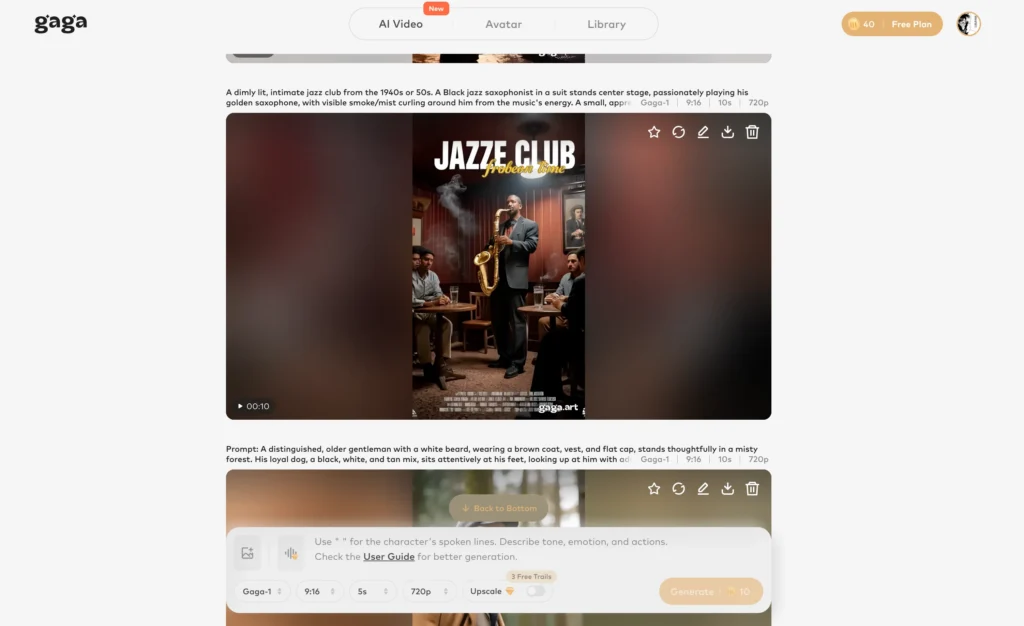
1. Gaga AI – Best for Realistic Motion
Best for: Professional content creators requiring high-fidelity motion
Pricing: Free trial, then $7.9/month
Gaga AI specializes in physics-accurate motion synthesis. The tool excels at understanding depth in images and applying perspective-correct camera movements. It’s particularly strong with portrait animation and architectural walkthroughs.
Key features:
- 4K export capability
- Advanced motion control with 12 preset camera movements
- API access for workflow integration
- Video and audio infusion
- Focus on AI avatar video generation
- Support the sound effects generation
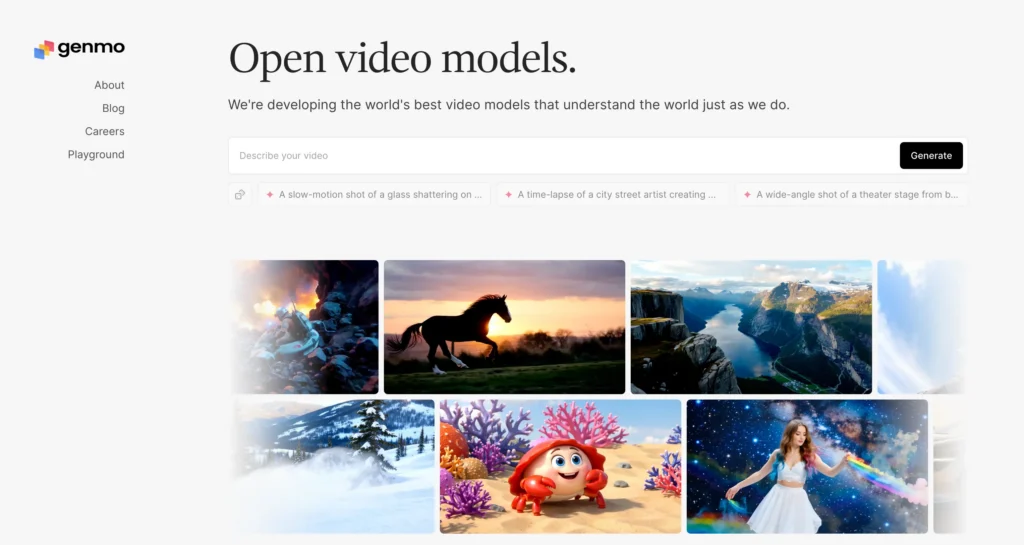
2. Genmo.ai – Best Free AI Video Generator From Image
Best for: Beginners and hobbyists
Pricing: Free (unlimited with watermark)
Genmo.ai offers the most generous free tier among quality AI video generators. You can create unlimited videos with a small watermark, making it ideal for testing concepts before investing in paid tools.
Standout features:
- Text-to-video capabilities combined with image-to-video
- Community gallery for inspiration
- Simple 3-click interface
- Loop video option for seamless social media posts
3. Leonardo.ai – Best for AI Art Integration
Best for: Digital artists and creative professionals
Pricing: Free (150 credits/day), paid plans from $12/month
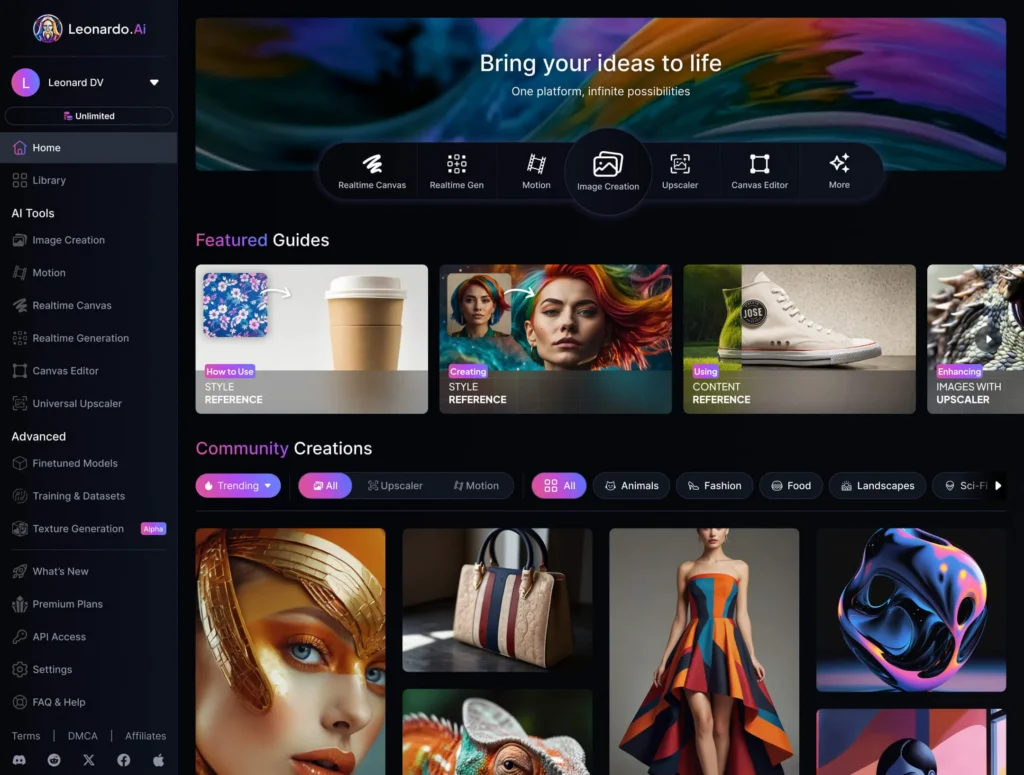
Leonardo.ai started as an AI image generator and expanded into ai video generator from image. This integration means you can generate images within the platform and immediately animate them, creating a seamless creative workflow.
Why choose Leonardo:
- Consistent art style across image generation and animation
- Fine-grained control over motion intensity (1-10 scale)
- Supports fantasy and sci-fi artwork animation
- Canvas editor for image preparation before animation
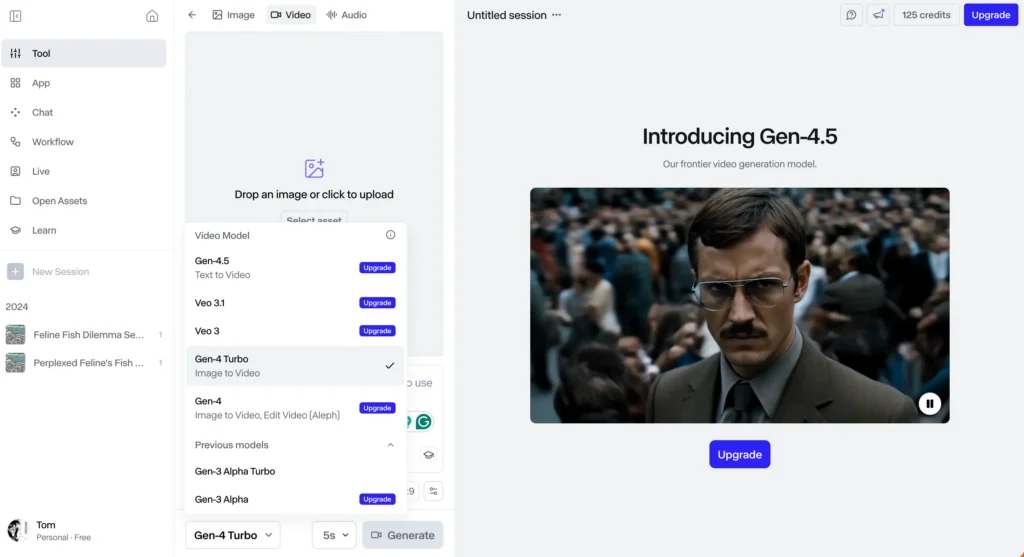
4. Runway Gen-3 – Best for Cinematic Quality
Best for: Filmmakers and video professionals
Pricing: $12/month (625 credits)
Runway’s model produces cinema-grade video clips with exceptional temporal consistency and motion blur. It’s the tool of choice when your output needs to match professional production standards.
Professional features:
- 16:9, 9:16, and 1:1 aspect ratio support
- Motion brush for selective animation
- 10-second clips (vs 3-5 seconds for most competitors)
- Director mode for shot composition control
5. Steve.ai – Best for Marketing Videos
Best for: Marketing teams and businesses
Pricing: $29/month/100 mins ai video
Steve.ai focuses on converting images into promotional video content with built-in templates for ads, product showcases, and social media campaigns. It includes text overlay tools and music libraries.
steve ai video generator studio
Marketing-specific tools:
- 50+ industry-specific templates
- Automated voice-over generation
- Brand kit integration (colors, logos, fonts)
- Direct publishing to YouTube and social platforms
6. Kapwing – Best for Quick Social Media Content
Best for: Social media managers
Pricing: Free (watermarked), $16/month
Kapwing combines AI video generation with a full editing suite. You can animate an image, then immediately trim, add captions, and resize for different platforms—all in one workspace.
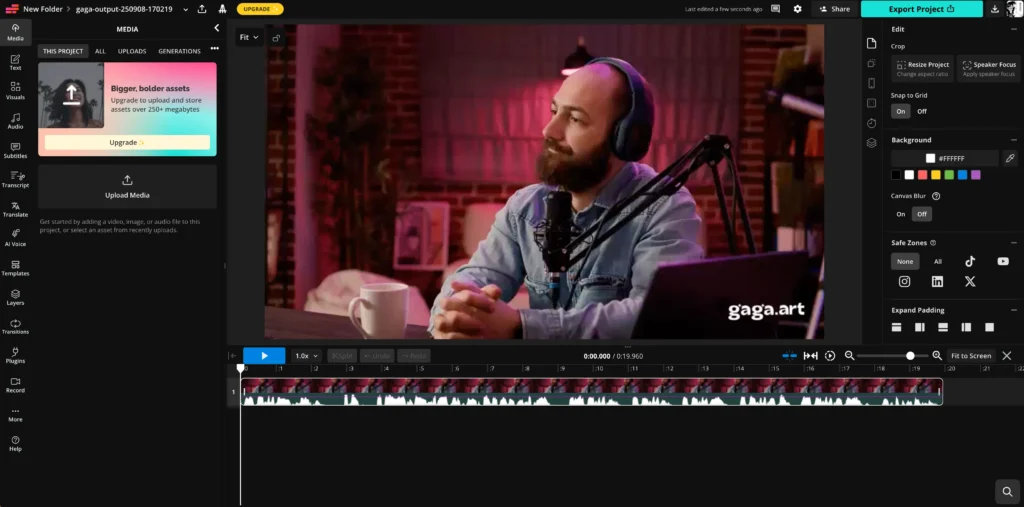
Social media optimization:
- One-click resize for Instagram, TikTok, YouTube
- Auto-caption generation with 70+ languages
- Collaboration features for team workflows
- Stock media library integration
7. Canva – Best for Beginners
Best for: Non-designers and small businesses Pricing: Free (limited), $13/month Pro
Canva’s AI video generator is embedded within its familiar design interface. If you’re already using Canva for graphics, adding video animation to your workflow requires zero learning curve.
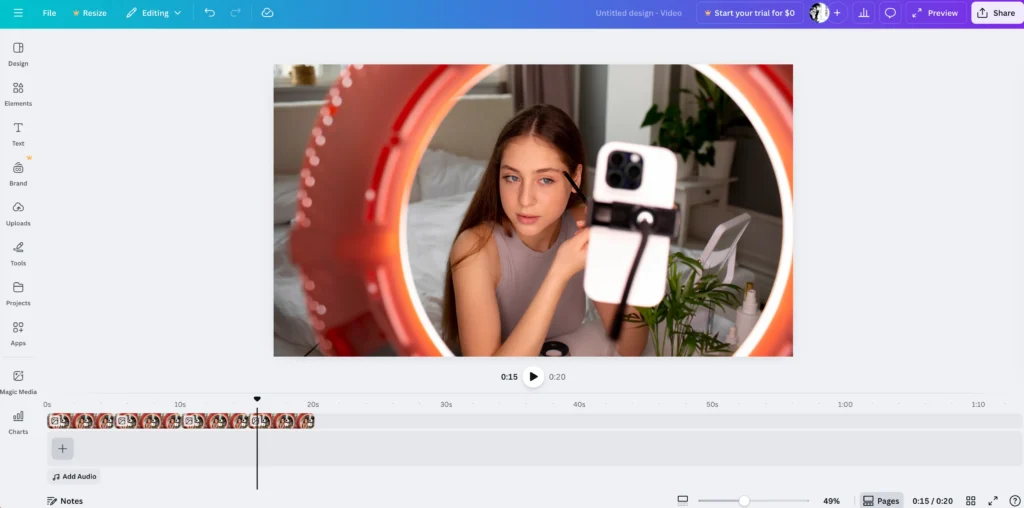
Beginner-friendly features:
- Drag-and-drop interface
- 10,000+ templates with animated elements
- Magic Animate feature for one-click animation
- Mobile app for creation on-the-go
8. InVideo.io – Best for Long-Form Content
Best for: YouTube creators and educators
Start Pricing: $30/month
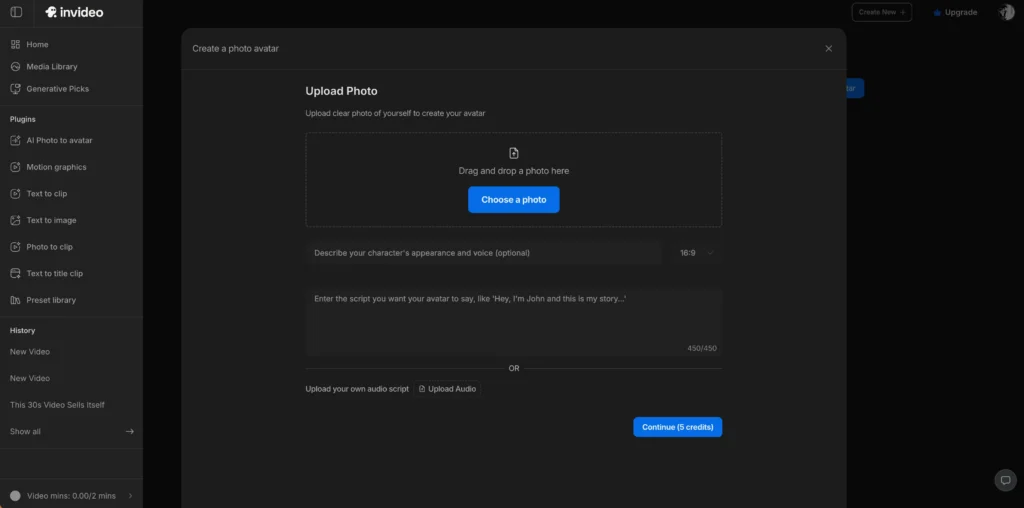
While most AI video generators focus on short clips, InVideo.io specializes in creating longer videos (up to 15 minutes) by stitching multiple animated images together with transitions.
Long-form features:
- Script-to-video with automated image selection
- Timeline editor for multi-clip projects
- Voice cloning for personalized narration
- 8 million+ stock assets
How to Create Videos From Images Using AI (Step-by-Step)
Basic Process (Universal Across Most Tools)
Step 1: Select your AI video generator
Choose based on your specific needs: free options like Canva for simple projects, or advanced tools like Gaga AI for professional motion quality.
Step 2: Upload your source image
Use high-resolution images (minimum 1920×1080 pixels). JPG and PNG formats work best. Ensure proper lighting and clear subject definition for optimal results.
Step 3: Define motion parameters
Specify the type of movement you want:
- Camera movements: Pan left/right, zoom in/out, dolly shot, orbit
- Object motion: Subtle animation (breathing, blinking), dramatic action (walking, flying)
- Environmental effects: Wind, water flow, particle effects
Step 4: Add text prompts (for advanced tools)
Describe the desired motion: “Camera slowly zooms into the mountain peak” or “Make the person turn their head to the left.”
You may like: Mastering the Prompt: The Ultimate Guide to Gaga AI Video Generation
Step 5: Generate and refine
Most tools take 30-120 seconds to process. If results don’t match expectations, adjust your prompt or motion intensity settings and regenerate.
Step 6: Export and download
Choose your resolution (1080p or 4K) and file format (MP4 is standard). Some tools add watermarks on free plans.
Why Use AI Video Generators From Images?
Time efficiency is the primary advantage. Creating a 5-second video clip from an image takes 30-90 seconds with AI, compared to hours of manual animation work in traditional video editing software.
Key benefits include:
- Zero video production skills required – No knowledge of After Effects, Premiere Pro, or animation principles needed
- Cost reduction – Eliminate the need for expensive video shoots, actors, or production crews
- Scalability – Generate hundreds of video variations from product images for A/B testing
- Accessibility – Turn photo archives into dynamic video memories without technical expertise
- Social media optimization – Videos receive 48% more engagement than static images on platforms like Instagram and Facebook
Free AI Video Generator From Image: What to Expect
Free options deliver usable results but come with limitations. Here’s what you typically get with free tiers:
Standard limitations:
- Watermarks on exported videos (removable only with paid plans)
- Resolution caps at 720p or 1080p (no 4K)
- Generation limits of 5-20 videos per month
- Shorter video duration (3 seconds vs 10+ seconds for paid)
- Queue waiting times during peak hours
Best free options ranked:
1. Genmo.ai – Unlimited generations with watermark
2. Leonardo.ai – 150 daily credits (approximately 15 videos)
3. Canva Free – 5 video exports per month
4. Kapwing – Unlimited creation, watermarked export
When free is enough: If you’re creating content for personal use, testing tools before commitment, or generating videos for internal presentations where watermarks don’t matter, free tiers work well.
AI Hot Video Generator From Image: Trending Use Cases
The term “hot” in this context refers to trending, popular, or viral-style video content. Here’s how creators use AI video generators for high-engagement content:
| Category | Specific Effects & Techniques | Typical Applications |
| 1. Social Media Viral Effects | Face morphing, 3D depth illusion, Time-lapse simulation, AI avatar animation. | Instagram Reels, TikTok, AI-generated portraits, landscape photography. |
| 2. Product “Unboxing” Style | 360° rotation, detail zoom, light reflection changes, background blur. | E-commerce (Amazon/Shopify), product showcases, drop-shipping ads. |
| 3. Memory Compilations | Ken Burns effect (pan/zoom), face animation (blinks/smiles), colorization, beat sync. | Personal nostalgia, family history, heritage projects, anniversary videos. |
| 4. Before/After Transformations | Side-by-side transitions, gradual fades, process reveals. | Fitness journeys, home renovation, beauty tutorials, digital art timelapses. |
AI adds dynamic transitions between before/after images, creating satisfying reveal moments that drive engagement.
Technical Requirements and Best Practices
Optimal Image Preparation
For best results, your source images should have:
| Category | Key Requirements / Best Practices | Pro-Tips |
| Optimal Image Specs | Resolution: 1920x1080px (FHD) min; 4K preferred.Format: PNG (transparency) or JPG (photos).File Size: Under 10MB. | Use high-contrast compositions and even lighting to prevent the AI from misinterpreting “depth.” |
| Motion Prompting | Structure: [Camera movement] + [Direction] + [Speed] + [Focus point] + [Duration]. | Be Specific: Instead of “cool,” use “Dolly forward toward the entrance.” |
| Motion Control | Keep focus on a single action rather than complex multi-angle sequences. | Stick to one primary movement per 3-5 second clip for cleaner results. |
Common Issues and Troubleshooting
| Problem | Potential Solution | Technical Adjustment |
| Jerky/Unnatural Motion | Reduce the intensity of the motion settings. | Dial down Motion Strength to the 30-50% range. |
| Distortion or Warping | Check the quality of the source file. | Avoid low-res images with compression artifacts (noise). |
| Inconsistent Results | Lock the generation variables. | Use a Fixed Seed Number to replicate the same “math” behind the video. |
| Background Artifacts | Simplify the visual environment. | Use clean/uncluttered backgrounds or remove the background entirely before animating. |
Frequently Asked Questions
How long does it take to generate a video from an image using AI?
Generation time ranges from 15 seconds to 5 minutes depending on the tool and quality settings. Quick options like Kapwing and Canva process in 15-30 seconds for basic animations. Advanced tools like Runway Gen-3 take 2-5 minutes for cinematic-quality 10-second clips. Free tiers often have longer queue times during peak usage hours.
Can I use AI video generators from images for free?
Yes, several platforms offer free tiers. Genmo.ai provides unlimited generations with a watermark. Leonardo.ai gives 150 free daily credits (approximately 15 videos). Canva allows 5 video exports monthly on free plans. Kapwing offers unlimited creation with watermarked exports. For commercial work without watermarks, paid plans typically start at $10-20/month.
What image formats work best for AI video generation?
PNG and JPG formats work universally across all AI video generators. PNG is preferred for images with transparent backgrounds or graphics. Use JPG for photographs. Minimum recommended resolution is 1920×1080 pixels (Full HD). Higher resolution sources (4K) produce better video quality. Avoid heavily compressed or low-resolution images as they create artifacts in the generated video.
Do AI-generated videos from images look realistic?
Modern AI video generators create convincingly realistic motion for most use cases. Quality depends on three factors: source image resolution, AI model sophistication, and motion complexity requested. Simple camera movements (pans, zooms) look highly realistic. Complex animations (making people walk, dramatic physics) may show artifacts. Top tools like Runway Gen-3 and Gaga AI produce near-professional quality suitable for commercial use.
Can I animate portraits and make faces move naturally?
Yes, specialized AI models excel at portrait animation. Tools can add subtle movements like blinking, breathing, and slight head turns. Some platforms (D-ID, Synthesia) specialize in syncing lip movements to audio. For natural results, use high-quality portrait photos with good lighting and clear facial features. Avoid extreme angles or heavily shadowed faces.
What’s the difference between AI video generators and traditional video editing?
AI video generators create new motion from static images using machine learning, while traditional editing rearranges existing video footage. AI tools don’t require video source material, technical skills, or time-intensive frame-by-frame animation. Traditional editing offers more precise control but demands expertise in software like Premiere Pro or After Effects. AI generation is ideal for creating quick content from photos; traditional editing suits complex narrative videos.
How can I make my AI-generated videos higher quality?
Five key strategies improve output quality: (1) Start with high-resolution source images (minimum 2K, preferably 4K), (2) Write specific motion prompts rather than vague descriptions, (3) Use lower motion intensity settings (30-60% range) for smoother results, (4) Select appropriate aspect ratios for your platform, (5) Export at the highest available resolution and bitrate. Running multiple generations with adjusted prompts helps achieve optimal results.
Are there AI tools that can create videos from multiple images?
Yes, several platforms support multi-image video creation. InVideo.io and Steve.ai excel at stitching multiple animated images into cohesive videos with transitions. Kapwing’s timeline editor allows sequencing multiple AI-animated clips. For slideshow-style videos with numerous photos, Animoto and Magisto (while not pure AI animators) offer AI-assisted multi-image video creation with automated transitions and music synchronization.
Can AI video generators add sound or music automatically?
Most AI video generators from images create silent video clips by default. However, several platforms offer integrated audio features: Steve.ai includes royalty-free music libraries, Canva provides audio tracks with automatic beat synchronization, and InVideo.io features AI voice-over generation. For pure image-to-video tools, you’ll need to add audio in post-production using video editors or separate audio tools.
What are the legal concerns when using AI to animate images?
Key legal considerations include: (1) You must own the image or have proper licensing rights, (2) Animating copyrighted artwork without permission violates intellectual property law, (3) Using celebrity photos commercially may infringe personality rights, (4) Each platform’s terms define whether you own AI-generated videos (most grant commercial rights with paid plans), (5) Some jurisdictions require disclosure when AI-modified content features people. Always verify licensing before animating images you didn’t create.
Related Posts:
 Haiper AI Video Generator Review: The Complete Guide (Dec 2026 Update)
 The Complete Guide to Stable Diffusion AI Video: From Image Generation to Advanced Video Creation
 AI Movie Generator: Complete Guide to Creating Videos with Artificial Intelligence in 2026
 AI Twerk Generator: 5 Free Tools to Create Viral Videos